
Very often, you can see what the problem is with a photo, but it's not so obvious what you can do about it. With our 15 Photoshop fixes, we've picked top technical issues you can encounter, and we show you how to fix them in Photoshop or Adobe Camera Raw.
• How to download Photoshop
• 100 Photoshop tips!
• 15 top Photoshop fixes
• More Photoshop tutorials
• Photoshop Elements tutorials
Free Photoshop stuff
• 55 free Photoshop brushes
• 63 free Photoshop templates
• 52 free Photoshop plug ins
• 63 free Photoshop actions
• Free textures for Photoshop
• Free frames and borders
Some issues are pretty obvious, like high ISO noise or sensor spots, but there's still an art to correcting them in software so that the results are as 'invisible' as possible. Other techniques like straightening skewed images might look obvious but actually have more than one solution, while some everyday exposure errors can be easier to fix than others.
Can you really fix camera shake or focus errors? You can, up to a point, but it depends on sound and careful editing technique, not 'magic' plug-ins.
More often than not, though, you just want to restore the vibrancy and contrast to your photos. Digital cameras are very cautious in the way they render tones and colors, and sometimes you need to apply a little digital leverage to make your images come out as you intended.
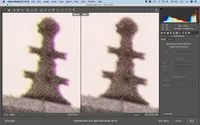
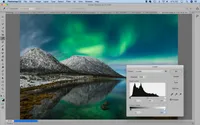
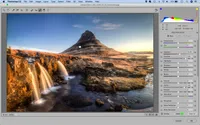
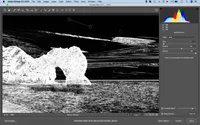
So here's our list of 15 top Photoshop fixes. Just click on the image thumbnail or title to see the full article. Happy photo-fixing!
• Read more: 32 Lightroom tutorials











How to get Photoshop
If you're not yet using Photoshop and Adobe Camera Raw, there's a 7-day free trial which should give you enough time to make your mind up, and maybe try out a few of the techniques above on your photos.
After that, you'll need to subscribe to an Adobe Photography Plan to keep using the software. Adobe offers three subscription based Photography Plans which you can click on below. We recommend either the regular Photography Plan, or the Photography Plan (1TB) which costs more but comes with 1TB online storage in case you decide to go with Lightroom CC.
For this set of tutorials and for anyone who likes to work on a single main computer, we recommend the regular Creative Cloud Photography Plan. This is the cheapest way to get started and it includes not just Photoshop CC and Adobe Camera Raw, but Lightroom CC too.


Read more:
• Best photo-editing software
• Best laptops for photographers
• Best desktop computers for photo editing
• 11 home photo projects
• 44 tips cards to cut out and keep
• Photography tips for beginners
• Best budget laptops
• Best desks for home working
• Best video conferencing apps

