
If you ask someone on the street to name a photo-editing program, they’ll probably say Adobe Photoshop. But ask a keen photographer or working professional, and there’s a good chance they’ll say Adobe Lightroom or Lightroom Classic instead. While Photoshop remains unmatched for sheer power and flexibility, Lightroom offers a much faster, more streamlined workflow for photographers.
That’s because it takes many of Photoshop’s most-used editing tools and presents them in a simpler, more accessible interface, while also letting users edit multiple images at once through batch editing. It also includes a built-in library system, making it easy to organize, browse, and manage large image collections.
In recent years, Lightroom has added masking, cloning, and a growing range of AI-powered tools, reducing the need to jump into Photoshop as often. Still, it’s not the only serious batch editor out there, with Capture One standing as perhaps its strongest professional rival.
For many users, though, Lightroom’s biggest drawback is cost. Like the rest of Adobe Creative Cloud, it’s only available via subscription, and even with its cleaner interface, it can still feel daunting for beginners.
Thankfully, there are plenty of alternatives. Some are cheaper, some offer perpetual licenses, and some are simply easier to learn. Luminar Neo is packed with AI tools, ACDSee Photo Studio Ultimate offers a familiar and approachable workflow, and Photoshop Elements provides a gentler, more affordable route into Adobe’s world.
Read on to find the Lightroom alternative that suits you best.

I look after Digital Camera World’s photo editing software guides and am a lifelong Adobe user. Lightroom Classic is my go-to editing program, so if I deem a piece of software good enough to be considered a Lightroom alternative, you can bet it’s worth your time.
How much does Lightroom cost?
Why you can trust Digital Camera World Our expert reviewers spend hours testing and comparing products and services so you can choose the best for you. Find out how we test.
Lightroom can only be purchased via a subscription. You can choose from a standard Lightroom plan (Lightroom and Lightroom Classic), Adobe’s Photography Plan (also includes Photoshop), or as part of Creative Cloud’s All Apps plan. Most photographers will be considering the first two options.
The Lightroom plan is available as a monthly rolling subscription that you can cancel at any time for $17.99 / £17.99, or an annual commitment paid monthly for $11.99 / £11.99 or annually at $119.88 / £119.21. The Photography Plan is available with the same constraints, $29.99 / £28.99 per month (cancel any time) and $19.99 for an annual plan in monthly installments or $239.88 as an annual lump sum.
What’s the difference between Lightroom and Lightroom Classic?
Both Lightroom and Lightroom Classic are ostensibly capable of producing the same high-quality results. The main difference is that Lightroom has a cloud-centric design, while Lightroom Classic’s workflow is centred around local storage. Lightroom also boasts a more simplified interface, while Lightroom Classic uses a more intimidating, yet professional-friendly interface.
If you work across multiple devices, frequently upload to social media, edit on the go, and generally work with smaller file sizes and image libraries, then Lightroom is a great choice. But if you’re a prolific photographer who’s dealing with terabytes of data and likes to process huge, high-resolution RAW files, then Lightroom Classic will be the better fit.
Best Lightroom alternatives in 2026
The best Lightroom alternative overall

✅ Professional tethering: The go-to for many studio photographers thanks to its coveted tethering workflow and 'Sessions'.
✅ Excellent RAW processing: Boasts superior color grading and is regarded by some as a better RAW image processor, overall.
❌ No Denoise alternative: Lightroom’s excellent AI-powered noise reduction tool is a big draw.
❌ More expensive: It’s more expensive than Lightroom, but you can also buy a perpetual license.
There are those who would call Lightroom Classic a Capture One alternative. Suffice to say, Capture One is also an image-editing titan used by professional creators. It’s particularly coveted by studio professionals, thanks to its tried-and-tested tethering workflow. It is more expensive than Lightroom, but it is also available as a perpetual license.
At their core, both pieces of software are extremely similar. Like Lightroom, you can both edit and organize photos in Capture One. And while Lightroom is an extremely strong RAW image editor, Capture One is, too. In my opinion, it pips Lightroom to the post in terms of color grading, with smoother tonal transitions.
While Lightroom supports tethering, Capture One is the industry standard at this point. And this is bolstered by its ‘Sessions’ workflow that groups RAW files, adjustment settings, and metadata within the same foldering network, meaning you can quickly access and work on a Session, making it a useful asset when tethering, managing projects, or communicating/working with clients.
Like Lightroom, Capture One offers manual and AI masking tools, but it also boasts Photoshop-style adjustment layers with virtually all tools available for each layer. While this does offer more flexibility within the software itself, more extensive local edits will still require a true layer-based program such as Photoshop or Affinity, the former being bundled into Adobe’s Photography plan. It’s also worth noting that Capture One’s noise-reduction tools cannot compete with Lightroom’s impressive, AI-powered Denoise function.
Read the full Capture One Pro review.
Best Lightroom alternative for noise reduction

The early version of DxO PhotoLab didn’t have much in the way of organizational tools, but the software that has long been known for its editing capabilities is now a true Lightroom competitor. DXO PhotoLab has exceptional image processing capabilities, and now it also boasts a good set of organizational tools too.
One of the stand-out features in DxO PhotoLab is its processing algorithms. After testing the DeepPRIME XD2 processing, we were blown away by the noise reduction. The software’s lens corrections are also stellar. In fact, I’d venture far enough to say that it’s one of the best options in terms of RAW processing results – even if you’re a pixel peeper.
But, DxO PhotoLab is no slouch when it comes to local edits either. The clone tool has a neat feature when you can adjust the scale or angle of the source, so you can remove objects even on more complex backgrounds. The biggest missing feature that Lightroom and Capture One has that PhotoLab doesn’t is the ability to automatically mask subjects and backgrounds using AI. But, it does have an Auto Mask tool to aid in local edits. It also can be a bit technical, which can mean a steeper learning curve.
Read the full DxO PhotoLab 8 review
Best Lightroom alternative for AI

✅ Great results with little effort: You don’t need to be a photo editing expert to turn out fantastic-looking images.
✅ Cross-platform editing: Skylum has just added cross-platform editing, which is great for those who like to move from a portable device to a desktop.
❌ Inconsistent AI tools: Luminar’s AI is a mixed bag. Some AI tools miss the mark, and some are absolutely brilliant.
❌ Workflow could be smoother: Luminar's workflow isn't always the smoothest, but for the most part, it's simple enough to use.
Luminar Neo isn’t a like-for-like Lightroom clone, but it does offer a similar workflow with basic image organization, traditional slider adjustments, and a whole host of AI-powered tools. With a mostly simple layout and a propensity for automated functions, it’s a great program for both editing novices and prolific enthusiasts who simply want to get their editing done as quickly as possible and to a good standard.
You could go from never having edited your images to turning out lovely-looking edits with a gentle learning curve. This is possible with powerful AI tools such as Enhance AI, which essentially lumps shadows, highlights, contrast, saturation, and more into a single slider, enhancing images right before your eyes. It also boasts the best AI sky replacement tool in the industry, if that’s your sort of thing.
There’s room to grow, too. With access to more traditional ‘manual’ sliders, you can get a good grounding on what it’s like to edit on a more professional level. Luminar Neo’s artificial intelligence doesn’t always hit the mark, though, and at times, its workflow and layout can feel a little inconsistent. However, if you want to speed up your workflow or find Lightroom too intimidating, it’s definitely worth a look. It's also software you can purchase outright, although you'll only get one year's worth of updates before you'll need to purchase a new license.
Read the full Skylum Luminar Neo review.
The best Lightroom alternative for ease of use

✅ Simple to use: There’s a learning curve, but it’s not nearly as steep as Lightroom and Photoshop.
✅ Quality RAW processing: ACDSee produces excellent results, and the AI noise reduction is highly effective.
❌ Updates can feel a little thin: The 2026 version is another incremental update, which does at least make a perpetual licence more tempting.
❌ Not for professionals: Some pros could make ACDSee work, but it’s clearly meant to be a more accessible solution.
ACDSee Photo Studio Ultimate 2026 offers an Adobe-like experience without the steep learning curve of Lightroom or Photoshop. This all-in-one editing solution is only available for Windows, but its accessible system requirements make it a great shout for those with a modest computing setup.
Not only is its monthly subscription cheaper than Adobe’s Lightroom plan, but its Develop and Edit modes provide Lightroom and Photoshop-style interfaces, respectively. As such, you have access to both batch editing and layer-based workflows (albeit neither as in-depth as their Adobe counterparts). The result is a true all-in-one solution, with everything a beginner or casual enthusiast could need to process their images. And if you don’t like subscriptions, you can opt for a perpetual license.
ACDSee is feature-rich, and I’m particularly impressed by its AI-powered noise-reduction tool. Not all of its features hit the mark, though, and it can lack the finesse and scope of pro-grade software, but it’s certainly more accessible. Most importantly, it excels as a RAW image processor and can deliver excellent-quality results. If you’re a PC user who wants an Adobe-inspired interface that’s simple to use and competitively priced, it’s a great choice.
Read the full ACDSee Photo Studio Ultimate 2026 review
Best budget Lightroom alternative
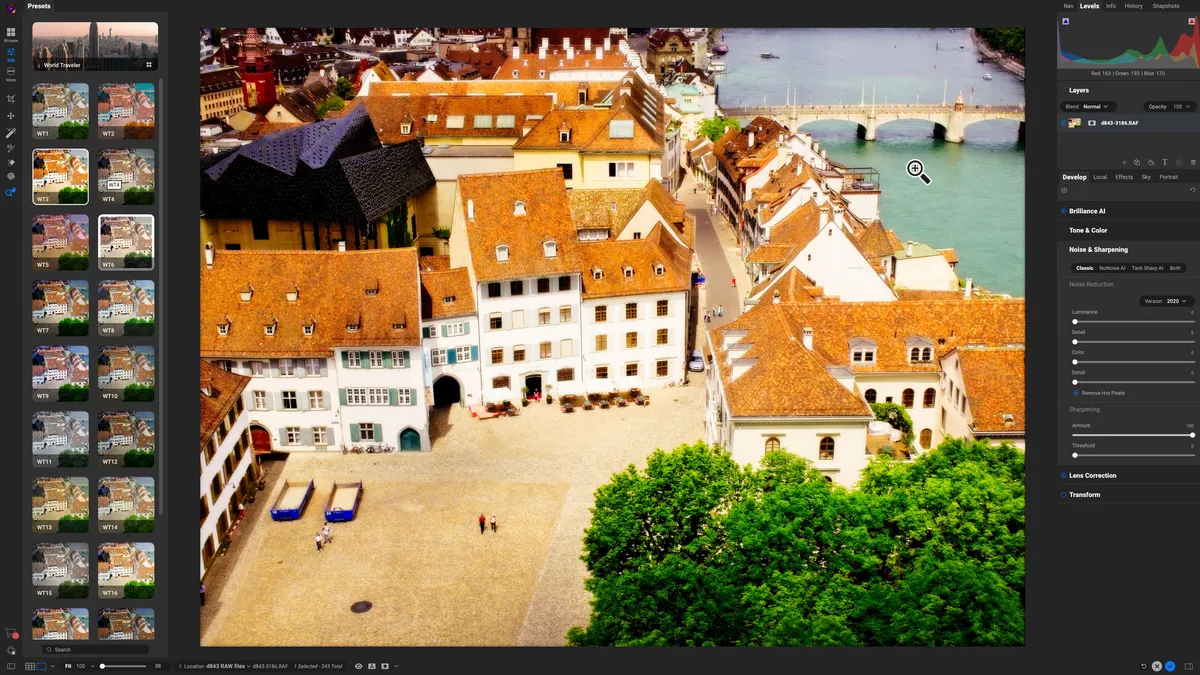
Once overlooked by photo editors, ON1 Photo RAW is a real bang-for-your-buck photo editor. Like Lightroom, it uses workspaces to organize the different capabilities, from cataloging to RAW processing to local edits. All those tools are wrapped up in a reasonably priced one-time purchase, too.
Where On1 Photo RAW really shines is the Effects workspace. Here, you can find a wide range of presets to inspire you or to get quick results. The app also has some great AI tools, including sky replacement.
While On1 Photo RAW is well-rounded and affordable, the RAW processing results weren't quite as pixel-perfect as the algorithms from competitors like Capture One and DxO PhotoLab. Still, it's a solid editing software for the price.
Read the full On1 Photo RAW 2025 review
Best Lightroom alternative for beginners

✅ Good value: The three-year license is still good value, made even better with the Premiere Elements 2025 bundle.
✅ Guided edits: Guide mode helps you spend less time simply playing with sliders and more time using them intentionally.
❌ You’re not a beginner: Intermediate editors and above will benefit from a more in-depth photo editing solution.
❌ RAW support: Not the most extensive RAW offering, and having to download extra software is a hindrance.
As the name suggests, Photoshop Elements’ editing interface has a lot in common with Adobe Photoshop, but a Quick mode with easy-access sliders and a full-fat image organizer means it’s got plenty of Lightroom functionality to boot. It can handle RAW files and produces very nice results, but you will need to download free additional software to process RAWs – a needless complication that’s not beginner-friendly.
For the most part, though, Adobe Photoshop Elements is simple to use. There’s even a Guided mode, which helps break down a variety of processes so you can learn to make edits intentionally. It also includes some nice AI features such as object removal, a rather impressive depth of field effect, and more.
Perhaps Photoshop Elements’ biggest shortcoming is that the interface can feel a little archaic. It’s certainly not as slick as, say, ACDSee Photo Studio Ultimate 2026, for example. It’s good value, though. Sure, the three-year license isn’t as good as a perpetual license, but most photographers will probably be looking to upgrade after three years anyway. If you’re a beginner or casual photographer who wants their foot in the Adobe door, Photoshop Elements is still a great place to start.
Read our full Adobe Photoshop Elements 2025 review.
How to choose an Adobe Lightroom alternative

Selecting an app to replace Lightroom isn't an easy task, but the decision becomes much more clean cut when you take a minute to really consider what you want from a RAW processor. A beginner and a professional won't have the same set of demands.
First, consider what type of software you need. Lightroom is a tool for organization as well as RAW processing and minor local edits; Photoshop contains none of the organization tools but offers far more advanced retouching tools. Some software tries to replace both Lightroom and Photoshop in one go, like Capture One, though the most advanced users may still need a Photoshop-like tool. Other apps offer RAW processing, but not much organizing, so consider what your must-haves are.
RAW processing plays a big role in the final image quality, so don't gloss over the algorithm talk. Some software does a better job at reducing noise, correcting colors, and fixing lens distortion than others.
How difficult will the software be to learn? Whether you are a new photographer put off by Lightroom prices or you have a terabytes of Lightroom catalogs and need something new, usability matters. Consider how the software is organized and what sort of how-to resources are available.
Finally, consider the price. Some software is only available with a subscription, but many Lightroom competitors offer a perpetual license option, which means you pay once and own it for life, but may not get all the future updates.
How I picked the best Lightroom alternatives
I tried out dozens of photo editing software as both a professional photographer and a writer. The DCW team as a whole tests software on a regular basis, constantly looking for the best option to bring out the best in our photos.
As we test different programs, we rate the app on seven key features:
1. Retouching, masking and compositing tools: A "local edit" is an adjustment that's applied to only part of the image. Local edits are a key part of the editing process and encompass everything from removing power lines to whitening teeth. This type of adjustment tends to be tedious, so any way that an app can deliver both quick and good results is a major plus.
2. Image organizing and cataloging tools: Lightroom doesn't just edit images, it organizes them too. A true Lightroom alternative needs to have the tools to sort all the photos into different albums, flag the ones you want to edit and discard the duds.
3. Non-destructive editing: A non-destructive edit is one that can be easily un-done. When working with RAW processors, you need to have the ability to go back and tweak each setting later, perhaps if you decide, when looking with fresh eyes, that you went overboard on the color saturation. It's an easy fix with a non-destructive photo editor.
4. RAW processing: A RAW file is an uncompressed image – it needs to be edited before it can be shared. RAW processors allow photographers to adjust the color and sharpness. Noise reduction and lens corrections are among some of the hardest algorithms to get right, so I prioritize looking at those features during testing.
5. One-click presets: Staring at an unedited photo can be intimidating. Presets can jump-start your creative juices by quickly applying an overall effect. From there, you can tweak and adjust as needed. Another must have? The ability to make your own presets so you can easily recreate your favorite looks.
6. Beginner friendliness: While advanced tools are great, the best photo editors present those options in a non-daunting way. When I test photo software, I look for an intuitive interface and access to a large tutorial database.
7. Value for money. Subscriptions can get annoying – so software earns bonus points when it gives users the option of choosing a recurring subscription or a one-time purchase of a perpetual license. I also look at the overall cost and how it compares to competitors.
Frequently asked questions
What is the difference between Photoshop and Lightroom?
Photoshop is such a well-known name in photo editing that even people outside photography have heard of it, while Lightroom is far less familiar to the general public. The two programs serve different purposes and often work best together. Lightroom is designed to organize image libraries, help photographers sort and select their best shots, and process RAW files by adjusting color, sharpness, and noise.
Photoshop, on the other hand, is built for far more advanced editing. While Lightroom can handle simple local adjustments, such as removing a few blemishes, Photoshop is the tool for detailed retouching, frequency separation, complex composites, and high-end fashion work. It also goes beyond photography altogether, offering powerful tools for graphic design and logo creation, which is something Lightroom was never built to do.
What happens to your photos if you cancel Lightroom?
One of the biggest concerns with switching from one photo editor to another is what happens to the images. But, if you cancel your Lightroom subscription, you don't lose your images.
If your images are on your hard drive, cancelling Lightroom won't remove them. However, Lightroom is a non-destructive RAW processor that only applies the edits when you export them. Thankfully, Adobe says that Lightroom users can still access the Export tool inside Lightroom after canceling. You don't be able to go in and adjust the edits, but you can export and browse through your albums.
If you save your images on the Creative Cloud, Adobe says that you have one year to download and save them in another location.
Many photo editors also have options to import your Lightroom catalogs, so you don't have to re-organize everything if you switch. The exact steps will depend on which program you switch to; for example, Capture One details the process here.
You may also like
For more editing inspiration, browse the best laptops for photo editing or the best photo editing software.
