


Digital Camera World Verdict
The impressive thing about Pixelmator Pro 4 is that it looks and behaves pretty much the same on both the desktop and iPad versions of the app. This makes it a doddle to start working on a project while on the go on the iPad, sync it automatically via iCloud and then carry on with your creative design or photo fixing on your MacBook or iMac’s larger display (or vice versa). The iPadOS experience is a joy, as the ability to adjust or reposition content with a swipe/slide of your finger helps you work faster and more organically (rather than having your hand movement translated by a mouse or trackpad).
Reasons to buy
- +
AI-powered selections
- +
iPad and Mac compatible
- +
Subscription or one-off purchase
- +
Templates kick start your designs
Reasons to avoid
- -
Auto layer selection isn’t always reliable
- -
Apple macOS & iPadOS only
Why you can trust Digital Camera World Our expert reviewers spend hours testing and comparing products and services so you can choose the best for you. Find out how we test.
Pixelmator began life as Pixelmator Classic, a photo-editing/design app created in 2007 by a Lithuanian company called Pixelmator. It evolved to become Pixelmator Pro in 2017. It’s no surprise that Apple had its eye on Pixelmator Pro, as it looked and behaved like a first-party Apple app, featuring a clean interface with side panels of tool icons and drop-down menu commands that could be summoned when required.
Apple awarded Pixelmator Pro Mac App of the Year in 2018 and 2023, so it makes sense that they would want to bring the app ‘in-house’. Apple acquired Pixelmator Pro (and its sister app Photomator) in 2025. Pixelmator Pro 4 was released as an Apple-branded product in January 2026.
Pixelmator Pro 4 fills a gap in the Apple ecosystem. Apple’s Photos app does a good job of organizing photos and has plenty of tools to help you perform typical edits, such as cropping to improve composition, counteracting color casts, and selectively adjusting shadows and highlights to reveal missing detail. Photos even has AI-powered tools to erase unwanted objects, but it lacks the more creative tools found in Pixelmator Pro 4. More importantly, Pixelmator Pro gives Apple users an alternative to Adobe Photoshop, offering them AI-powered selection tools and the ability to edit content on separate layers using non-destructive masks.
Pixelmator Pro 4 is to Apple Photos what Final Cut Pro is to iMovie, which is why Pixelmator Pro 4 deserves a place in the Apple Creator Studio bundle alongside Final Cut Pro. Indeed, now that Apple has an effective alternative to Photoshop, the Apple Creator Studio suite of apps offers a more viable alternative to Adobe Creative Cloud.
Don't miss our comprehensive photo-editing software buying guide.

Pixelmator Pro 4: Specifications
| Row 0 - Cell 0 | macOS |
iPadOS |
Processor |
Apple Silicon (M1 or later) |
M-series chip or A16 or later |
Operating system |
macOS 26.0 or later |
iPadOS 26.0 or later |
RAM |
8 GB |
8 GB |
Disk space |
951.4 MB |
717.1 MB |
Pixelmator Pro 4: Price
Pixelmator Pro 4 is available as a standalone app for a one-off purchase of $49.99 / £49.99 from Apple’s App Store. Alternatively, you can access Pixelmator Pro 4 as part of Apple Creator Studio, which costs $12.99 / £12.99 per month or $129.99 / £129.99 per year (or $2.99 / £2.99 monthly and $29.99 / £29.99 yearly for students). This is a bundle of nine apps that includes Final Cut Pro.
It’s worth noting that the version of Pixelmator Pro that ships with Apple Creator Studio has an additional Warp tool that’s very useful for creative typography work, so designers should bear that in mind. You can explore Pixelmator Pro 4’s toolset via a free trial of the Apple Creator Studio (though you will need an Apple account to use the apps in the bundle, including Pixelmator Pro 4).
Pixelmator Pro 4: Design & Handling
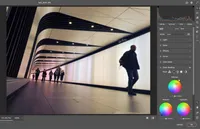
Pixelmator Pro 4 looks like other native macOS or iPadOS apps, thanks to its clean black interface with sidebars containing a stack of collapsible panels to display and access all the tools you may require, while keeping the workspace nice and clean. This is especially useful on the iPadOS version of Pixelmator Pro 4, where screen space may be more limited than on a Mac.
I tested Pixelmator Pro 4 on a 15-inch MacBook Air (M2) and on a 13-inch iPad Air (M3). Thanks to the clean and ergonomic interface, it was a joy to retouch photos on the iPad Air, and I didn’t miss the two extra inches provided by my MacBook’s display. Indeed, the interface looks almost the same on both devices, with a drop-down menu at the top revealing a host of menu commands, so the experience of round-tripping between Pixelmator Pro on both devices was smooth and seamless.

You can customize the Pixelmator Pro 4 toolbar by adding or removing tools. You can even drag-and-drop to stack tools in a single toolbar box and make them pop up when you click/press-and-hold. One interesting touch is that the brush-based Dodge and Burn tools (as found in Photoshop) no longer have outmoded darkroom-derived labels. In Pixelmator Pro 4, they are called Lighten and Darken, which will make more sense to Gen-Z users.
Another useful feature is the Split View comparison, which allows you to swipe to see how the edited image compares with the original. This view is available if you’re performing basic effects and color changes, but not if you have multiple composited images and text layers.
Pixelmator Pro 4 is well integrated with the Apple ecosystem. You can import a photo (or clip) from Apple Photos (and a full-sized version will be downloaded from your iCloud Library). Once you edit the photo on an iPad, it is saved as a .pxd (Pixelmator document) on iCloud, enabling you to open and edit it in Pixelmator Pro 4 on your Mac.

You can also save your work in a variety of formats, including a layered .psd Photoshop file. However, a word of warning! Many of Pixelmator's specialized effects (such as the bokeh artifact effects layer) won’t be included in the layered Photoshop version of the project, so Pixelmator Pro 4 doesn’t play particularly well with Photoshop. However, Photoshop users looking for an alternative image-editing and vector-text design app will find it relatively easy to master the equivalent tools in Pixelmator Pro 4.
The Layers panel looks and behaves similarly in both Photoshop and Pixelmator Pro 4, and, as with Photoshop, you can use adjustment layers to apply a range of effects to image layers below, or use masks to create solid and transparent sections on adjacent image layers, for example. In fact, Photoshop users can use some of the same keyboard shortcuts they habitually employ, such as pressing Cmd+J to duplicate a selected layer in the Layers panel.

Pixelmator Pro 4: Performance
Having been a regular Photoshop user since the mid-90s, I often find that using third-party image editing/design apps is a challenging task, as I have to unlearn my Photoshop habits and discover how the new apps let me perform common tasks – such as selecting a person and adding them to a new background, for example.
Thanks to Pixelmator Pro 4’s similar toolset and ML (machine learning) tools, this type of task is quick and simple. I was able to select a person from a busy background in a few seconds by using the AI-powered Select Subject command. I could then draw a vector curve to follow their silhouette and type editable text that followed the curve. By copying and pasting the selected person, I was able to place them above the text layer, which helped integrate the text with my design.

This was even easier to do on the iPad version of Pixelmator Pro, as I could draw a curve path more intuitively with a few taps on the iPad’s display. Because I was using the Apple Creator Studio version of Pixelmator Pro, I could use the Warp tool to creatively manipulate text. However, this essential typography tool is not available in the one-off purchase version of Pixelmator Pro 4.
There are also some handy AI-powered tools to help you upscale small images, notably the Super Resolution command. This can take a small shot measuring 769 x 967 pixels at a resolution of 72 dpi and upscale it to 2307 x 2901 pixels at 216 dpi. This is a valuable tool if you want to make low-resolution AI-generated images from apps such as Adobe Firefly big enough to print, for example.

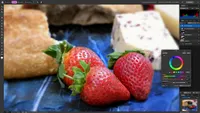
The Effects panel offers a one-tap springboard to adjusting a host of image properties. Effects are helpfully arranged in different categories such as Blur, Distortion, and Stylize. Within the Effects panel is a presets icon, from where you can apply multiple effects in a tap, such as Ethereal and Photographic effects. Photographic effects include Light Leakage and Tilt Shift. Traditionally, the latter blurs the edges of the frame to mimic the shallow depth of field that you get when shooting a toy or model up close. A tilt-shift lens can mimic this look by blurring the top and bottom of the frame, making full-size locations such as a railway platform look like a model train set. You can also use Tilt Shift to blur the edges of a portrait like a vignette from a vintage camera.
The Tilt Shift effect is particularly easy to fine-tune thanks to the iPad's touchscreen properties. The positioning of the selective blur effect is set by two control points: one to control the width of the graduated blurred edges and the other to adjust the angle of the blurred edges. Another effect – Bokeh – mimics the blurred circular artifacts produced by a camera’s wide-aperture settings, adding extra texture and character to a portrait.

An exciting feature for social media content creators is this ability to apply Pixelmator Pro 4’s wide range of tools (such as creative effects and color and tonal correction) to video clips. You can summon a Cinematic LUT (Look Up Table) from the Color Adjustments panel to instantly color-grade a clip (such as adding a fashionable teal-and-orange look).
You can also create a title sequence by adding a text layer and applying styles to the text, such as color gradients and a drop shadow. You can share your stylized graded clip – complete with text – straight to social media or with friends and family. Alternatively, use the menu bar to export it as an .mp4 file for use in a Final Cut Pro or iMovie project. Though do bear in mind that with Pixelmator Pro, you can’t keyframe text to make it fade in and out (as you can with Photoshop’s more advanced video-enhancing tools).
Pixelmator Pro 4: Verdict
As a ‘long-in-the-tooth’ Apple user, Pixelmator Pro 4 is a welcome addition to my Apple workflow. I can start editing on my iPad, sync my project via iCloud, and continue editing Pixelmator Pro 4 on my MacBook. Because Pixelmator Pro 4 leaves Apple Photos to manage my photos and videos, it doesn’t get bloated with asset management tools. I can focus on using Pixelmator Pro 4’s AI-powered toolset to edit photos (and clips) with a wide range of non-destructive image adjustment tools, plus the option to edit in layers (which Apple’s Photos app lacks).
Additional design tools, such as the ability to draw a path and extrude editable vector-based text along it, elevate Pixelmator Pro 4 above being a mere photo-fixer. This level of creativity is well beyond Apple Photos’ capacity, especially thanks to the built-in Image Playground tool. Traditionally, I’ve found Image Playground tends to produce ‘cartoon’-style assets, which are frankly a bit rubbish, but thanks to the addition of a ChatGPT plug-in, you can generate more photorealistic assets for your projects. The Photos app fixes, but Pixelmator Pro 4 fixes and creates!
Features ★★★★★ |
AI-powered features, such as Select Subject (and the option to generate assets from scratch via Image Playground), make this a powerful creative tool. Generative upscaling via the Super Resolution command will also be useful when making low res AI-generated content big enough to print. |
Design ★★★★★ |
Pixelmator Pro slots nicely into the Apple ecosystem, and if you’re au fait with Photoshop, you’ll take to its workspace like a duck to water. It also looks and behaves the same on macOS and iPadOS, making it perfect for ‘round-tripping’. |
Performance ★★★★★ |
Pixelmator Pro 4 ran smoothly on both my MacBook Air (M2) and iPad Air (M3). You can customize the workspace to suit your needs, such as dragging useful tools into the toolbar and remove unwanted ones. |
Value ★★★★☆ |
A one-off price of $49.99/£49.99 will be an attractive alternative to those wanting to avoid the never-ending cost of a subscription, though you do need to subscribe to get the extra Warp tools. |
Alternatives