Digital Camera World Verdict
Evoto AI churns through hours of meticulous retouching into seconds. Frequency separation can be performed with a simple slider, while backgrounds, tattoos, and glare on glasses can be removed in a single click. It ran flawlessly on my M3 MacBook, though its credit-based payment system remains its biggest hurdle. And with no layers, you’ll likely need to factor in the cost of Adobe Photoshop (or similar) to cover all of your editing needs. Despite recent trust issues surrounding a now-removed generative headshot pilot, Evoto’s commitment to not training on user data remains firm. For high-volume professionals, Evoto AI is a game changer that will pay for itself via the efficiency it provides.
Pros
- +
Wide range of photo editing and RAW processing features
- +
Genuinely speeds up workflow
- +
Brilliant pro-grade AI features
- +
Makes advanced edits more accessible
Cons
- -
Credit system makes it easy to go over budget
- -
Watermarks on previews
- -
Questions raised by ‘headshotgate’ controversy
Why you can trust Digital Camera World Our expert reviewers spend hours testing and comparing products and services so you can choose the best for you. Find out how we test.
Evoto is an AI-powered retouching software suite developed by California-based Truesight Technology Inc. The photo-editing software uses powerful AI algorithms to help photographers tether, cull, retouch and deliver professional results in a fraction of the time it would take to perform advanced editing tasks manually.
I cannot review Evoto AI without mentioning the ‘headshotgate’ controversy that the company found itself in at the beginning of the year, causing Evoto to respond to the AI Headshot Generator backlash with an apology. In doing so, the company reassured users that images are not used to train Evoto’s AI models. However, for the purposes of this review I will try to be as unbiased and fair as possible when giving my full assessment on what the software currently offers.
Evoto AI Desktop boasts fast photo culling, color grading, portrait retouching, background adjustments, batch processing and gallery sharing, and for these reasons the software could be a hit with photographers of weddings, events, headshots, and newborns, as well as beauty and fashion.
Version v6.2 for desktop dropped in January and has the latest features like AI image Smart Culling and Cloud Spaces and received rave reviews from industry heavyweights including John Gress and Vanessa Joy who called it a ‘gamechanger’. So I installed the Mac Desktop version and loaded up some credits to see what all the fuss is about – here’s how I got on…
Evoto AI Desktop: system requirements
| Header Cell - Column 0 | Windows |
macOS |
|---|---|---|
Processor |
64-bit 1.2GHZ or faster |
2015 mac or later |
Operating system |
Windows 7 x64, Windows 10 x64, Windows 11 x64 |
macOS v10.13 and above |
RAM |
8GB (32+GB recommended) |
8GB (32+GB recommended) |
Graphics |
Dedicated GPU not required but can significantly speed up AI processing |
Dedicated GPU not required but can significantly speed up AI processing |
Disk space |
1TB SSD Recommended |
1TB SSD Recommended |
Internet connection |
Required |
Required |
Evoto AI Desktop: features
Portraiture is one of the areas where Evoto AI Desktop excels and has a very comprehensive suite of features to do everything from removing glare on glasses to erasing tattoos and cleaning up blemishes. There’s also a Hair Color Changer, Body Editor, AI Face Slimming, AI Makeup Editor, AI Stray Hairs Remover, and AI Teeth Fixer.
There are also features to help you change the expressions on someone’s face, remove Marionette lines, dark circles, frown lines, and grey hairs. When it comes to a model’s clothing, you can use the AI to remove wrinkles in clothing and also remove lint, too.

There’s also a long list of background edits you can make using Evoto AI, which, of course, could be applied to a portrait, or any other subject, for that matter. These adjustments include AI Background Blur, AI Sky Changer, AI Background Replacer, AI Background Remover, and AI Studio Backdrop.

For Color Adjustments, you have the ability to AI Color Match, AI Color Looks, AI Image Denoiser, Photo Filters, AI Masking Editor, Add Grain to Photo, AI Photo Sharpener, and Camera Profile Matching. The last one, Camera Profile Matching, is currently in Beta at the time of my review, but it’s great to see new features constantly being added and improved.
Several AI Image Generate features were also still in Beta; these included AI Object Remover, AI People Remover, and AI Clothes Color Changer. There are also features for AI Photo Enhancer, AI Old Photo Restoration, and AI B&W Photo Colorization.
Evoto AI Desktop: interface and usability
The Evoto interface is similar to other RAW editors such as Adobe Camera Raw and Lightroom Classic, so it feels familiar, though it makes some tweaks to accommodate its unique set of AI features.
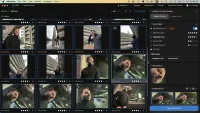
The interface has two modes to switch between: Library and Edit. Library is where you load in your RAW or JPEG files, and it’s also where you can use Evoto’s AI to cull your images, which looks for duplicates and blurry out-of-focus pictures to save you time when going through picking your best photos from a shoot.
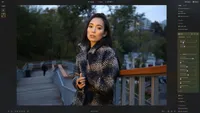
The editing module provides all of the usual RAW-editing adjustments such as exposure, highlights, shadows, white balance, vibrance, saturation, lens profiles, sharpening, and so forth. But it's the other panels found in a sidebar on the right of the interface where Evoto comes into its own with its powerful AI features.

Here, you can go into Portrait Retouching, Background Adjustments, Clothing Adjustment, and Tethered Shooting. The sheer number of different options you have in each category feels a bit overwhelming to start with, but it’s absolutely brilliant to have access to so many useful features all one click away, such as Frequency Separation for skin retouching.
This is a task that can be quite intensive and take up a lot of time in traditional editors, but becomes quick to do in Evoto AI by dragging a slider to your desired amount – it lowers the bar to entry on these complex tasks massively.
Evoto Desktop's RAW converter is nothing to write home about – it's very solid and similar to others on the market. However, this was never meant to be Evoto's USP – that would be for its features for portraiture, clothing, and backgrounds.
These AI tools will prove to be invaluable to professionals who shoot a lot of portraits, either in the studio or outdoors, or even weddings and events, but also product photographers will get quite a lot from Evoto too, with its ability to quickly cut objects out and place them on new backgrounds and tidy them up with AI in just a click.
In the top left of the interface, you have the Hand Tool to move around your image, a Liquify Tool so you can push and pull pixels around, as well as a Healing Tool to remove distractions from your picture. There’s also a useful search option (see below) allowing you to search for specific tools and features if you can’t find them – this is essential as Evoto has such a cornucopia of features that it’s easy to become a little lost.
Evoto's search function is brilliant when you know the name of the edit you want to perform and need to get to its sliders quickly. There’s also a handy sidebar for Presets, Masking, and History here, too.

At the bottom of the interface in Edit mode, you’ll find your filmstrip displaying all of your imported image thumbnails, and makes it easy to go through them and edit. You can star-rate images and change the view mode to compare your edit to the original, just like in Lightroom Classic CC.
I also liked the ability to right-click an image and create a virtual copy, which makes it easy to work up several different edits from a single photo. Unlike Photoshop and Lightroom, there is currently no ability to merge several images together to create Panoramas or HDR images.
In the top right of the interface, is where you can click on your profile to see how many credits you have left and also where you’ll export your edited photos.
Credits aren’t deducted when you edit, instead, they’re deducted when you export, and due to this, it's quite easy to get carried away when you're editing, only to realise you might need to buy more credits when you go to export if you haven't stocked up on enough already.
Evoto AI Desktop: performance
Evoto recommends a 64-bit operating system with 32GB of RAM and a 1TB SSD for storage. It also recommends a graphics card for Windows users along the lines of an NVIDIA RTX 3060 or more powerful.
I tested Evoto on my 16” 2023 Apple Macbook Pro M3 with 18GB RAM, 12 CPU cores, and 18 GPU cores, so it’s a pretty well-specced and fairly modern laptop. I think potentially more photographers will be using a laptop like this rather than something akin to a gaming PC with a dedicated graphics card, so I reckon this is a pretty fair laptop to do my tests on.
Evoto claims it can help you make simple edits 78% faster, and in many ways, I have to agree. Evoto makes it possible to perform tricky edits that would usually take some knowledge of an app such as Photoshop, as well as time required to pull it off.
A pivotal moment for me when using Evoto was realising it could do frequency separation for professional skin smoothing via a simple slider, something that usually requires intermediate knowledge of Photoshop's layers and tools.
It also makes it really easy to reduce wrinkles, crows' feet, blemishes, or reduce shine on the face, so you can clean up your people pictures effortlessly – and the results have honestly blown me away. This has to be the future of editing; it's so much easier and faster than traditional methods and lowers the bar for newcomers.
The downside is that Evoto also takes it further than just your basic edits with options that allow you to completely change a person’s makeup, re-sculpt their body or face, and even change a neutral closed-mouth expression into one with a smile. Personally, these features feel like a step too far, but this is a personal issue and if, like me, you don’t find these features necessary or distasteful, you don’t have to use them.

On my Apple M3 MacBook Pro, the software ran flawlessly and was speedy even when going through large volumes of 45MP RAW files from my Canon EOS R5. It applied its AI edits in rapid time, too, and I was seriously impressed. Export times were also very reasonable in my experience, though this will, of course, depend on how powerful your computer is.
One of Evoto’s latest features is ‘Smart Culling,’ which is currently free for Evoto users, though will later require a subscription or standalone purchase. This does work remarkably well, with the AI running through images and removing photos that have blurry focus or shots where a person’s eyes are closed or are poorly exposed, and only importing the very best based on the parameters you’ve set.
An internet connection is required for many of the AI-powered editing features within Evoto, as this is processed in its cloud rather than locally on your computer; however, this is a similar story with other editing apps, such as Photoshop’s Generative Fill AI.
I’m not marking it down due to this, but it is something to be aware of if you want to edit, for example, on a train and you don’t have an internet connection, or your broadband signal is known for dropping out when you edit.

There's also an Evoto watermark displayed over your edited images, and while I can understand that this is to prevent users from perhaps screenshotting the result and using them without spending any credits, I did find this to be really quite distracting.
I would prefer Evoto moved away from the credit system altogether and just went to a pay-monthly subscription to remove this issue.
Because credits are also only deducted when you export your images, it is a little easy to get carried away with your edits and lose track of how many photos you’ve worked on – only to realise you may not have enough credits when you go to export.
Evoto AI Desktop: value for money

Evoto AI Desktop works on a credit system, so its value comes down to which plan you choose and how much use you’re going to get out of it. With plans ranging from $89/£66 a year for 800 credits to $1,339/£989 per year for 24,000 credits, you could pay anywhere between 0.05-0.10 cents or 4-8 pence to edit each image.
There are also Pay-as-You-Go options, which don't require a subscription and start at $49/£44 for 200 credits. That works out 25¢ or 22p per image, which is more costly than the subscription, but could be a more convenient option. Other pay-as-you-go options allow you to buy more credits, and these work out slightly better value for money also.
If you're a large organization, you'll almost certainly want to check out their Enterprize options. Evoto also makes it easy to buy more credits or additional cloud storage whilst you're mid-subscription too, so you're never completely locked in.
Credits in a pay-as-you-go package are valid for two years and do not roll over, though credits in a subscription package will roll over if you continue your subscription. Though some users online voiced their strong opinions when they found out that any unused credits at the end of the subscription become wiped if the subscription isn't renewed – so be sure to use them or lose them!
So, do I think Evoto is good value for money? In a nutshell, I do, however, I wouldn't use it for absolutely every image I'm going to edit. Like many users, I suspect, I'll still need to pay for a monthly subscription to Adobe Photoshop, as there are just too many things that Evoto cannot currently do, such as layers. It would also be far too costly to edit every image in Evoto.
However, for small select groups of photos, specifically from portrait or product photo shoots, I would absolutely use Evoto, especially if it's for tricky edits that I know would take a long time to pull off in Photoshop. This is where Evoto excels, as it makes such tricky edits easy to pull off with simple sliders, and I'd be willing to pay the small price per image for its speed and convenience.
Evoto AI Desktop: verdict

I’ve always prided myself on trying to remain as impartial as possible during my reviews, and if I were reviewing Evoto AI solely on its photo-editing features alone I would 100% recommend it – it’s fantastic for portrait retouching and does speed up image editing and culling.
However, its credit-per-image payment system feels antiquated and makes it easy to go over your budget if you lose track of your edits and credits. It also can’t do all of the editing tasks a professional photographer may need, so you’ll also need to factor in a program such as Photoshop CC into your budget, too, to do the things Evoto can’t.
It’s hard to look away from the hot water that Evoto has gotten itself into recently regarding the AI Headshot Generator backlash. Despite the company removing the content, apologizing to its userbase, and reiterating that it doesn't train its AI via user images, the controversy has angered plenty of users.
From my point of view, I'm willing to take Evoto's word on this one, and the fact of the matter is that an AI Headshot Generator would have hit the shelves sometime soon in the future, regardless of whether from a company like Evoto or a competitor, so I'm perhaps not as surprised as some others.
For professional portrait, fashion, and product photographers, Evoto could be a valuable part of the retouching workflowthat makes processing easier, faster, and less costly. While for amateurs just starting out, or for those competent with a camera but less so when editing, Evoto lowers the bar for entry for those complex edits.
In my experience, Evoto made me more efficient at handing over deliverables to clients – meaning they get their content faster, and as a freelancer, I get paid quicker and can move on to the next project faster, too. Like it or loathe it, AI is here to stay, and we photographers have to adapt or fall by the wayside.
As far as AI programs go, Evoto's features are class-leading, intuitive to use, and affordable when used in moderation.
Features |
While the AI features are class-leading, Evoto doesn't have many of the tools you'll need for basic image editing such as Layers, so you'll likely need Evoto in addition to Photoshop to cover you for all the editing tools you may need |
★★★★☆ |
Interface |
Evoto's number of AI editing possibilities can be a bit overwhelming but it's brilliant to have so many options and a handy search bar mechanic makes it easier to find the specific edit you're looking for |
★★★★★ |
Performance |
Operational speed will depend on your computer system, but I ran into no issues on my M3 MacBook Pro. Like many programs using AI requires Internet so a fast and reliable connection is recommended for best performance |
★★★★★ |
Value |
The credits system Evoto employs is a bit restrictive and dated, it's also quite easy to burn through credits if you're not careful so it can be costly compared to subscription models |
★★★★☆ |
Alternatives