


Digital Camera World Verdict
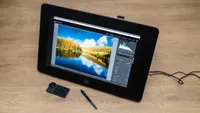
The XPPen Artist Ultra 16 is an impressive pen display that blends a great range of features with excellent image quality. The 10-bit OLED screen produces fantastic image quality that's vibrant and bursting with detail, while the pen and touch input, including 10-finger multi-touch with customizable zones, allows you to blend touch and stylus control for a much more efficient workflow. This isn’t a cheap pen display by any stretch, but it’s not the most expensive either, especially given the features that are on offer.
Reasons to buy
- +
Excellent image quality
- +
Touch and pen input
- +
Fantastic middle-ground size
Reasons to avoid
- -
It's expensive
- -
Large presence for smaller desks
Why you can trust Digital Camera World Our expert reviewers spend hours testing and comparing products and services so you can choose the best for you. Find out how we test.
When choosing a pen display, like the XPPen Artist Ultra 16, its size on your desk and portability can be important considerations, and that’s before you’ve even considered the technical specs. As one of Digital Camera World’s pen display reviewers, I’m always sharing my thoughts as to what can be improved, and the XPPen Artist Ultra 16 may address my entire wishlist. This puts it in a prime position to be considered one of the best drawing tablets and one of the best tablets for photo editing and photographers.
The XPPen Artist Ultra 16 is a 4K OLED pen display that claims to offer a color gamut of 99% sRGB, 99% Adobe RGB, and 98% Display P3. It’s also Calman Verified for color and can produce 1.07 billion colors with an astonishing 100,000:1 contrast ratio. Calman Verified means that the display has high color accuracy out of the box, with the idea being that you can connect the display, install the drivers, and get to work instantly.
As a 16-inch pen display, the Artist 16 provides a comfortable working area and screen size without taking up too much desk space; this is something you have to accept with much larger 24-inch pen displays. The Artist 16 also offers pen sensitivity of 16,384 levels and 10-finger multi-touch capabilities. This means you can use either one of the two X3 Pro styluses or your fingers to draw and zoom into images.
With the resolution, OLED screen, and specs in general, the Artist Ultra 16 is fairly expensive compared to XPPen’s more budget-conscious entry-level pen displays. However, it is a high-end device. The question is, do you get the features and functionality you’re paying for? Let’s find out…

XPPen Artist Ultra 16: Specifications
Resolution |
4K (3840x2160px) |
Brightness |
350 nit |
Colour gamut |
99% sRGB, 99% Adobe RGB, 98% Display P3 |
Display colors |
1.07 billion |
Pen sensitivity |
16,384 levels |
Screen dimensions |
344.2x193.6mm / 13.55x7.62in |
Dimensions |
405x273x13.5mm / 15.94x10.75x0.53in |
Weight |
1.53kg / 3.4lbs |
XPPen Artist Ultra 16: Price
The XPPen Artist Ultra 16 launched on September 26, 2025, and costs $900 / £899 / AU$1,500, which is quite a high price for a 16-inch pen display. However, it has a 4K AMOLED Calman Verified screen with 10-finger multi-touch capability, making it a rather unique proposition at the time of writing, so it’s arguably priced competitively.
In the box, you get the Artist Ultra 16, an X3 Pro Smart Chip Stylus, an X3 Pro Slim Stylus Pen, case with nibs (X3 Pro Slim Stylus nibs x 4, X3 Pro Stylus felt nibs x 4), an ACK05 Shortcut Remote, a Bluetooth Receiver, 2x USB-C to USB-C Cables, a USB-C to USB-A Cable, a Power Adapter, a 3-in-1 Cable, 10x X3 Pro Slim Stylus nibs, 10x X3 Pro Stylus Standard Nibs, a ACS 16 Stand, a Cleaning Cloth and glove. This is everything you need to keep working for many years to come.
XPPen Artist Ultra 16: Design & Handling
The XPPen Artist Ultra 16 is a slick-looking device with a clean bezel featuring no controls whatsoever. The dial and shortcut buttons are all on the ACK05 Shortcut Remote, which can be connected to computers via Bluetooth or a USB cable. This controller features a dial and 10 buttons that can be customized with different keyboard functions.
The buttons are blank since they don’t have specific functions tied to them, so you have to remember what each one does once set up. Over time, the button functionality will become second nature, but at first, things can be hit or miss. For a pen display of this price and quality, it would be great to see buttons with mini screens that display their function, like the Logitech MX Creative Console, and present on other pen displays such as the Xencelabs Pen Display 16.

The pen display is also quite slim, which adds to its portability and provides a more modern look. There are no fans for cooling, so the Ultra 16 is silent during operation, and there’s ventilation on the back of the device for heat dissipation. When using the Ultra 16 on your lap, it’s worth being sure that the ventilation isn’t being covered by your legs to avoid the risk of overheating.
Build quality is excellent, and the Ultra 16 looks and feels like a professional device. Overall dimensions are 405x273x13.5mm / 15.94x10.75x0.53in with a weight of 1.53kg / 3.4lbs, putting it in the medium-size pen display category. The display comes with a basic stand for angled use, can be used flat, and at this size and weight, it can also be comfortably used on your lap if you prefer.


I tended to use it on my desk with my keyboard behind, using the stand to tilt the Ultra 16, and found this a comfortable way to work. I also used it connected to my notebook, resting it on my lap while I sat on the sofa. The ability to move away from what you might call a formal workspace and continue to work comfortably is great. And while this isn’t the smallest and most portable XPPen pen display available, it’s not so large and heavy that you can’t travel with it.
The screen itself offers a generous 344.2x193.6mm / 13.55x7.62in working area. The AG nano-etched glass also provides both viewing comfort and general comfort in use. Setting up the driver software is simple, and once you calibrate the input by clicking on reference points on the screen, you can take advantage of precise and accurate input. Calibration is essential because without it, the mouse pointer never sits directly below the stylus, but this only takes a minute during the simple setup.

XPPen Artist Ultra 16: Performance
With a 4K OLED screen, a color gamut of up to 99% sRGB, 99% Adobe RGB, 98% Display P3, and a contrast ratio of 100,000:1, the image produced by the Ultra 16 is fantastic as you’d imagine. It’s punchy and highly detailed, making it ideal for drawing, design work, and even more colour-critical photo editing tasks. The screen is also 10-bit and can produce up to 1.07 billion colors. Brightness is 350 nits, and there’s a 170-degree viewing angle. This is wide, and I never once had any viewing issues.
The Ultra 16 comes with the X3 Pro Smart Chip Stylus and the X3 Pro Slim Stylus, both offering 16K pressure sensitivity and 60 degrees of tilt recognition. These come in a handy storage case that doubles as a pen stand and stores the spare nibs, etc., for each stylus. Having two styluses available allows you to choose the one that’s most comfortable to you personally, and I found the chunkier X3 Pro Smart Chip Stylus most comfortable.

The X3 Pro Slim Stylus is indeed comfortable and feels much more compact in use. This, paired with the touch control allowed for what felt like a seamless workflow using both stylus and hand to navigate images when drawing and photo editing. For touch control, you can even customize zones to avoid accidental palm inputs.
There’s also a Floating Menu that can be initiated and customized with keyboard shortcuts or touch gestures. As the name suggests, the menu floats on screen. This is alongside the ACK05 Shortcut Remote, so you can use one or both depending on your preference.
The Ultra 16 is compatible with Windows, macOS, Chromebook and Android smartphones. It isn’t, unfortunately, compatible with iPhones because of the way they work. Plugging the Ultra 16 into my Samsung Galaxy Ultra opened up Samsung Dex, which provides a more desktop-like experience, and I was able to edit phone Raw files in Lightroom Mobile using a much larger touchscreen than my phone. It’s not essential functionality in my opinion, but it’s not a bad thing to have either.
XPPen Artist Ultra 16: Verdict
The XPPen Artist Ultra 16 is an impressive pen display that blends an excellent range of features with fantastic image quality. The 10-bit OLED screen produces vibrant images that are bursting with detail. Not to mention, a color gamut of up to 99% sRGB, 99% Adobe RGB, and 98% Display P3, Calman Verification, and the ability to produce 1.07 billion colors mean it can be used for color-critical work.
The pen and touch input, including 10-finger multi-touch with customizable zones, allows you to blend touch and stylus control for a much more efficient workflow. This isn’t a cheap pen display by any stretch, but it’s not the most expensive either, especially when considering what’s on offer. Plus, the build quality is excellent while the design is simple and stylish.
Features ★★★★★ |
Impressive features all-round, including touch control. |
Design ★★★★★ |
Tastefully designed, and a great size and weight for portability. |
Performance ★★★★★ |
Precise input and an excellent on-screen image thanks to the the 4K OLED screen. |
Value ★★★★ |
This is an expensive XPPen pen display and may be too much for some. |

✅ Buy this if...
- You would like excellent image quality in a pen display.
- You like both stylus and touch input.
🚫 Don't buy this if...
- You’re on a tight budget or need a smaller pen display.
- You only need a graphics tablet rather than a pen display.
Alternatives