Digital Camera World Verdict
If you’re using a free non-linear video editing app such as iMovie and want to expand your editing skills, then it’s worth considering a subscription to Movavi Video Editor 2026, as it offers the type of powerful post-production tools found in other subscription-based apps such as Adobe Premiere Pro. Unlike Premiere Pro, Movavi Video Editor has a much easier learning curve thanks to its well-designed and intuitive workspace, enabling you to create slick-looking social media reels or eye-catching YouTube videos relatively quickly.
Reasons to buy
- +
Auto subtitling tools
- +
AI background removal
- +
AI motion tracking
- +
Packed full of filters
Reasons to avoid
- -
Many effects cost extra
- -
Relatively expensive subscription
- -
Slow to open existing projects
Why you can trust Digital Camera World Our expert reviewers spend hours testing and comparing products and services so you can choose the best for you. Find out how we test.
Movavi Video Editor 2026 is a non-linear video editor [NLE] that enables you to quickly trim and reorder a sequence of video clips to tell a more succinct and entertaining story on your YouTube channel or social media feed. I started editing video back in the late 80s. Before the invention of NLE apps such as Final Cut Pro and Adobe Premiere Pro, I had to play unedited RAW footage from a videotape player and record the good bits onto a videotape recorder.
If I needed to swap the order of any clips, then I had to tape over edited footage with the new clips (which could mean starting the whole edit from scratch if the change occurred near the beginning of the programme). This meant that it took me far longer to edit a programme using a tape-to-tape linear edit suite than it does using today’s drag-and-drop digital non-linear apps. And if I needed to create a transition, such as a dissolve or wipe between two clips, then I needed to hire in an extra video player and a vision mixer.
If the younger 1980s version of me could have glimpsed an NLE such as Movavi Video Editor 2026, it would have blown my mind, especially as it enables one to swap the running order of clips in seconds and drag and drop in titles and transitions instantly. And as for the ability to use AI to make a title or graphic track the movement of a subject! Brain-melting stuff.
Movavi Video Editor 2026: System requirements
| Header Cell - Column 0 | Windows |
macOS |
|---|---|---|
Operating system |
Microsoft Windows 10/11 64-bit with up-to-date patches and service packs installed |
macOS® 12.0 or higher |
Processor |
Intel, AMD, or compatible dual-core processor, 1.5 GHz |
64-bit Intel processor, Apple M1 or higher |
RAM |
4GB |
4GB |
Graphics |
Intel HD Graphics 2000, NVIDIA GeForce series 8 and 8M, Quadro FX 4800, Quadro FX 5600, AMD Radeon R600, Mobility Radeon HD 4330, Mobility FirePro series, Radeon R5 M230 or higher |
Intel HD Graphics 2000, NVIDIA GeForce series 8 and 8M, Quadro FX 4800, Quadro FX 5600, AMD Radeon R600, Mobility Radeon HD 4330, Mobility FirePro series, Radeon R5 M230 or higher |
Storage |
600MB |
600MB |
Monitor resolution |
1280 × 768px (32-bit) |
1280 × 800px (32-bit) |
Movavi Video Editor 2026: Price

I found the pricing models for Movavi Video Editor 2026 to be a little confusing at first, but here are your options. For starters, you can subscribe to Movavi Video Editor 2026 on a monthly basis at $23.95 / £17.95 per month. A much cheaper option is to pay $69.95 / £53.95 per annum for the Movavi Video Editor Plus plan. With the subscription options, you’ll get any updates to the software.
If you’re not a fan of subscribing, then you can purchase Movavi Video Editor for a one-off payment of $99.95 / £89.95. However, this lifetime purchase version won’t receive any updated tools or effects. Oh, and if you want to access all the available effects packs, it’ll cost you an additional $139.95 / £80.95 per year (or $49.95 / £28.95 per month).
Given that you can subscribe to Adobe Premiere Pro for $22.99 / £21.98 per month, Movavi’s monthly subscription is a little cheaper, but the annual subscription is much better value for money, and you’ll get to enjoy any upgraded tools and effects. It’s worth noting that Movavi Video Editor 2026 is available for a free 7-day trial, so I’d certainly recommend taking it for a test drive (if you don’t mind being bombarded with emails offering tutorials!).
Movavi Video Editor 2026: Interface and usability

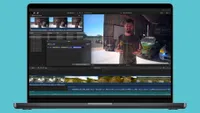
If you’ve used any non-linear video editing apps before, then you should be able to jump right in and start using Movavi Video Editor, as it hasn’t reinvented the wheel when it comes to interface design. The general interface is black and grey, with icons and text labels rendered in easy-to-read white. This makes the app resemble most other NLE apps such as Final Cut Pro.
The clean and neutrally coloured interface design enables you to focus on the art of editing your raw clips into a slick show. Along the bottom is the obligatory timeline, where you can drag and drop clips from the bin and then drag the cursor to trim their duration and rearrange their running order. Above the timeline is a collection of icons that enable you to summon tools such as the Blade, which cuts a clip into two with a click in the timeline.
You can view your programme as it takes shape in the main viewer, which can be expanded so that your programme fills the entire frame. On the far left is a toolbar that gives you access to a suite of extra post-production assets such as Audio (which includes music tracks), Text (animated banners and graphics), and Elements (which contains eye-catching stickers that are helpfully grouped into themes such as Gaming and tech or Family and kids).

Movavi Video Editor is packed full of assets, but many of these belong to effects packs that you need to subscribe to (see 'Price' section). Usefully, you can set the All items drop-down to Free, so only free effects are displayed. You can use paid effects for free in your project, but there’s little point in doing this as a Movavi watermark pops up in the middle of the screen in your exported edited footage. Fortunately, there are plenty of animated effects and assets for you to enjoy using without paying extra for an effects pack, as you’ll see from my supporting video tour of Movavi Video Editor.

Movavi’s most powerful and useful post-production tools can be found by clicking on the Tools icon. Here you’ll find tools such as Chroma Key and Stabilisation, plus a time-saving Scene Detection tool that takes a long, rambling clip and automatically cuts it into separate clips when it notices a change in the scene. We’ll look at some of the key tools in the Performance section (below).
Movavi Video Editor 2026: Performance
To test Movavi Video Editor 2026, I decided to create a ‘day in the life’ video of model Maryna Sedin. I had shot some raw footage of Maryna dragging her suitcase full of clothes to London's Barbican Centre for a photo shoot, where I also interviewed her about her modelling career.
It was a simple matter to swipe the cursor over clips in the bin to preview their content, drag in the thumbnails to trim a clip’s start and end point, and then drag it into the timeline. I was then able to drag clips around in the timeline to swap their running order until I was happy with the unfolding story. I added parallel clips on multiple video layers, which enabled me to add cutaways that illustrate what the subject is talking about (as well as hiding cuts to the interview footage on the main video layer).

Editing clips on the Movavi timeline was very intuitive, especially as I’ve been using apps such as Final Cut Pro for years. However, one small behavioural detail did bug me. In Final Cut Pro, you can click anywhere in the timeline, and the playhead will jump instantly to this point. You can then tap the space bar and play the footage from that selected point in the timeline. With Movavi, you need to click on the duration bar above the timeline to manually reposition the playhead. This slowed me down quite a lot as I was used to the click-anywhere-in-the-timeline option from Final Cut Pro.
That small shortcoming aside, I was very impressed with Movavi’s AI-powered features as they saved the day in relation to my edit’s audio quality. When I’d interviewed Maryna, I’d forgotten to turn on my wireless mic’s noise cancellation feature. As a result, we could hear unwanted background sounds such as a cleaner hoovering in the distance. Maryna’s voice also sounded echoey thanks to reverberation from the location’s concrete walls.
Fortunately, the Sound autocorrect tools panel had an AI-powered Recording Studio tool. One click on this tool’s icon, and the background noise disappeared from Maryna’s audio track, and her voice sounded much clearer too! This tool did a much better job than Final Cut Pro’s Voice Isolation tool when applied to the same footage.

Another even more impressive AI-powered Movavi tool is the Auto subtitles feature. A few years back, it would take me many hours to listen to footage and then manually type up the subject’s speech into text. It only took a few seconds for Movavi’s AI-powered Auto subtitles tool to generate accurate subtitles from Maryna’s interview and place them above the appropriate footage in the timeline. I could then fine-tune any mistakes (of which there were few) and change the look of the captions in the Subtitles settings panel.
You can even choose an option that highlights each word as it is spoken by the subject - karaoke style. Final Cut Pro can also transcribe speech to captions, but I found that it was not as accurate as Movavi Video Editor. A few years ago I charged hundreds as a freelance video editor to create subtitles for a programme. Thanks to AI, this task takes minutes, so those lucrative subtitling gigs are well and truly over!

Another very useful AI-powered tool comes in the shape of motion tracking. You can drop a graphic onto the timeline and then use AI to make it track the movement of a subject on the main video layer. If the video clip isn’t on the main video layer, then the AI motion tracking feature isn’t available. This took me a while to work out, as you can place clips on multiple video layers above the main track, but AI will only motion track objects on main layer clips.
Movavi Video Editor 2026: Verdict
Today’s generation of video editors is well-used to the convenience of editing video on a computer, and free apps such as iMovie make it an inexpensive task. However, in the crowded field of non-linear video editing apps, Movavi Video Editor 2026 stands out thanks to a combination of powerful post-production tools and an intuitively designed and easy-to-master interface.
You then have the option to pay an additional subscription to gain access to Movavi Effects if you want to expand your choice of graphics, transitions, and music tracks, but as you’ll see from my supporting video, the basic version of Movavi is generously packed full of sophisticated post-production tools that will enable you to create eye-catching videos. And while there are free feature-packed video editing apps available, such as the extremely impressive DaVinci Resolve 21, Movavi Video Editor is much easier to master.
Features ★★★★★ |
Fast and easy editing: cut, re-order, crop, adjust colours and speed. AI-powered audio fixing and subtitle generating. Drag and drop grading effects and animated titles and captions. |
Design ★★★★☆ |
Typical non-linear editor layout with timeline, bin and viewer just where you’d expect them. Clean interface so you can concentrate on the edit. |
Performance ★★★★★ |
The AI-powered tools are extremely impressive, improving audio quality, adding subtitles and motion tracking subjects in a few clicks. |
Value ★★★★☆ |
You can buy it outright, but the app won’t be updated. The subscription models are relatively comparable with other apps, though you do have to pay extra to access additional effects. |
Alternatives