Digital Camera World Verdict
DxO PhotoLab 9 brings major new AI masking tools that match what rival photo editors are doing for subject and area detection and go further with the ability to soften and feather AI mask edges for smoother, subtler blending. With the DeepPRIME denoising process now up to XD3 and a new, much smaller part-processed DNG/RAW file export, this is a very strong update – though PhotoLab remains a somewhat technical tool better suited to experts than beginners.
Pros
- +
New, smaller ‘High Fidelity’ DNG file export
- +
DeepPRIME XD3 for Bayer and X-trans sensors
- +
Excellent camera/lens correction profiles
- +
Powerful AI masking tools
Cons
- -
Preferred Elite edition quite expensive
- -
Organizing tools no match for Lightroom
- -
Limited presets and effects
- -
Perhaps too detailed and technical for some
Why you can trust Digital Camera World Our expert reviewers spend hours testing and comparing products and services so you can choose the best for you. Find out how we test.
DxO PhotoLab 9 is a powerful photo-editing application with the focus firmly on image quality. It starts with DxO’s bespoke lens correction profiles, which are applied automatically as you browse your images and it continues with its DeepPRIME XD3 noise reduction, which can achieve near-miraculous results with high-ISO images. For quality-conscious RAW photographers at least, this has to be considered one of the best photo-editing software applications on the market.
You also get extremely powerful global and local adjustment tools for enhancing your images, and these now include Lightroom-style AI masking tools. These did cause early issues with graphics drivers on some Windows machines, but that’s been addressed with free updates, and hopefully these technical issues are over (I am actually reviewing the Mac version, which worked fine from the start).


AI masking is a real time-saver, but not without its issues. As Adobe Lightroom users will know, the masks are typically hard-edged and don’t always blend well with surrounding parts of the image as you increase the strength of the adjustments. DxO is on the case, adding diffusion and feathering controls for AI masks, which I think might be a first.
The new AI masks can be used alongside DxO’s regular mask types, including Control Points and Control Lines, which are unique to DxO and extremely fast and effective once you understand the principles.
There’s another change under the hood which might not sound exciting but has profound practical benefits. You can now save your images as part-processed ‘High Fidelity’ Linear DNG files up to four times smaller than before, and often smaller than the original RAW file. This means you can export a DNG RAW file with DxO’s lens corrections and DeepPrime denoising applied, which can be opened and edited just like a regular RAW file in other programs.
DxO PhotoLab actually comes in two versions: Elite (reviewed here) and Essential. The Essential edition offers DxO’s lens corrections, but not the DeepPRIME processing and sundry other features, so really it’s the Elite edition that’s the better buy, even if it is more expensive.
DxO PhotoLab 9: Specifications
Windows |
macOS |
|
Operating system |
Microsoft® Windows® 10 version 22H2 or 11 version 22H2 (64-bit), • Microsoft® Windows® 11 version 24H2 (64-bit) recommended |
macOS 14.7 (Sonoma), macOS 15 (Sequoia) recommended |
Processor |
Intel® Core™ 10000 series or Intel® Core™ Ultra 7 165H or AMD Ryzen™ with 4 cores, Intel® Core™ 10000 series or Intel® Core™ Ultra 7 165H or AMD Ryzen™ with 8 cores recommended |
Any CPU, M1 for AI masking & DeepPRIME XD3, Apple M2 Pro recommended |
RAM |
8GB, 16GB for AI masking, 32GB recommended |
16GB, 32GB recommended |
Graphics |
For DeepPRIME 3, DeepPRIME XD3 X-Trans, and AI Mask: NVIDIA RTX™ with 6GB of VRAM with latest drivers, AMD Radeon RX6000 series with 6GB of VRAM with latest drivers, Intel ARC with 8GB of VRAM with latest drivers, Intel® AI Boost for Core™ Ultra, recommended: NVIDIA RTX™ 3070 with latest drivers with 8GB of VRAM, AMD Radeon™ RX 6700 with latest drivers with 8GB of VRAM |
Not quoted |
Storage |
30GB, 50GB recommended |
30GB, 50GB recommended |
Monitor resolution |
1280 x 768 display, 1920 x 1080 recommended |
1280 x 768 display, 1920 x 1080 recommended |
DxO PhotoLab 9: Price
PhotoLab 9 costs $239.99/£219.99 (about AU$342) for a new license or $119.99/£109.99 (about AU$171) to upgrade. This makes it a similar price to a year’s subscription to the Adobe Photography Plan, though cheaper than a perpetual license to the pro-oriented Capture One.
PhotoLab 9 is certainly not cheap, then, but it’s not the most expensive ‘serious’ photo editor on the market either. You can elect to buy DxO’s separate FilmPack analog simulation and ViewPoint perspective control tools, too, and these will then be integrated into PhotoLab’s non-destructive workflow – though of course this does push up the price.
DxO PhotoLab 9: Design & Handling
The PhotoLab 9 interface comes in two parts, or windows. The PhotoLibrary panel is where you do all your large-scale photo browsing, organizing and searching. The PhotoLibrary is essentially a folder browsing tool, with star ratings, flags and keywording to help with organizing.
There is also a Projects panel, where you can create a nested hierarchy of projects (albums, in other words) for organizing images ‘virtually’ by theme or subject, even when they are stored in different locations on your hard drive. (One of the changes in the latest version is to make these projects visible in the Customize (editing) view, just as you can view Collections in Lightroom Classic’s Develop module.


There’s a search box at the top of the left sidebar of the PhotoLibrary. This is clever and odd at the same time. As soon as you start typing, it will try to match what you’re typing with image filenames, EXIF data and keywords, but it appears to draw on an index built automatically from folders you visit, which isn’t under your control.
The PhotoLibrary panel is effective in a slightly crude and scatty kind of way that’s fine for basic organizing but will be irritating to anyone used to more powerful cataloguing options. The main editing work, though, is done in the Customize panel.
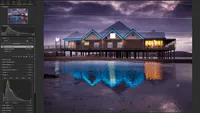
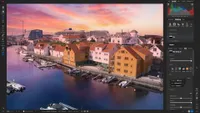
Here, you get a stack of editing tools organized into tabs for Light, Color, Detail, Geometry and FX, though what you see in the last two will depend on whether you also have DxO ViewPoint and FilmPack installed. There are quite a few different adjustment panels and you may not always remember where to find them, so DxO has included a little search box for finding specific tools and you can also ‘favorite’ the ones you use most often. You do still have to remember which tools are in which tabs, though.
There’s a separate tab for local adjustments, and this is where you find the new AI masking tools. You can select areas using an eyedropper, a marquee or choosing a named subject type from a menu. This includes skies, though PhotoLab struggled to pick out more than a couple of straggly clouds in the images I tried it on, which is odd, and the eyedropper approach worked a lot better.
DxO’s Control Points work around a circular mask that targets the tones in the center, and Control Lines are like gradient masks with an eyedropper for more selective adjustments – great for darkening skies in outdoor shots without darkening your subjects at the same time.


You can combine masks to add, subtract and intersect your mask selections, and given that the masks themselves can be adjusted for sensitivity and diffusion, this can all get quite complicated – but this kind of control is there if you need it.
The DeepPRIME XD3 denoising is highly effective but also hardware-intensive – it can take a few seconds even on a fast computer – so this means previewing the effect as you work is not straightforward. DxO does offer a loupe panel that floats over the image to optimize a small area in real time as you work, and there’s also a full-screen live update option for machines that are quick enough.
Remember that PhotoLab is a non-destructive editor, so all your adjustments exist only within the software. If you want to produce a version to share, you will need to use the Export button to produce a processed JPEG or TIFF file.
DxO PhotoLab 9: Performance


In terms of quality of results, PhotoLab 9 is about as good as it gets. DxO’s lens corrections don’t just tackle the usual suspects – chromatic aberration, vignetting and distortion – but also apply lens-specific global sharpness and edge softness corrections. There’s nothing you need to do. PhotoLab will find matching profiles automatically and, if they’re not installed yet, will download them for you – it only takes a few seconds.
DxO’s DeepPRIME XD3 processing is pretty remarkable, too, and it now handles both regular Bayer sensor RAW files and X-Trans images, too. I can’t say I see much difference in the results between this and the previous DeepPRIME version, but I’ve yet to see a rival denoising tool that can match DxO’s combination of denoising effectiveness and fine detail recovery. You won’t always see a huge difference with the latest and best camera gear, but older models, smaller sensors and cheaper lenses get a whole new lease of life.
I’m less convinced about the AI masking. Quite apart from the strange sky masking issues in my tests, I’m not sure DxO’s AI masking is quite as quick as Lightroom’s, for example, or Capture One’s.
DxO PhotoLab 9: Verdict

PhotoLab 9 is for the image quality purist who is unfazed by technical processes and who simply wants the best possible output from their RAW files. It’s not Photoshop, so you can’t produce layered composites, and it doesn’t do one-click effects like the Nik Collection or ON1 Photo RAW. It’s an image editor in the truest, most traditional sense. It’s probably not ideal for a busy, high-volume professional workflow, but perfect for fine-art photographers, print makers and exhibitors.
Features ★★★★☆ |
The editing tools are excellent but the image organization leaves something to be desired, and there are no one-click effects apart from a handful of presets. |
Design ★★★★☆ |
DxO has gone to some lengths to simplify the layout of the editing tools, but it’s still quite a technical application, especially once you start modifying and combining masks. |
Performance ★★★★★ |
Leaving aside any AI masking glitches, PhotoLab 9’s output is pretty exceptional, thanks to its excellent correction profiles and almost uncannily good DeepPRIME XD3 denoising. |
Value ★★★☆☆ |
PhotoLab 9 isn’t the cheapest subscription-free photo editor on the market, nor is it the most expensive. Just remember you’re paying for quality above features. |
Alternatives