




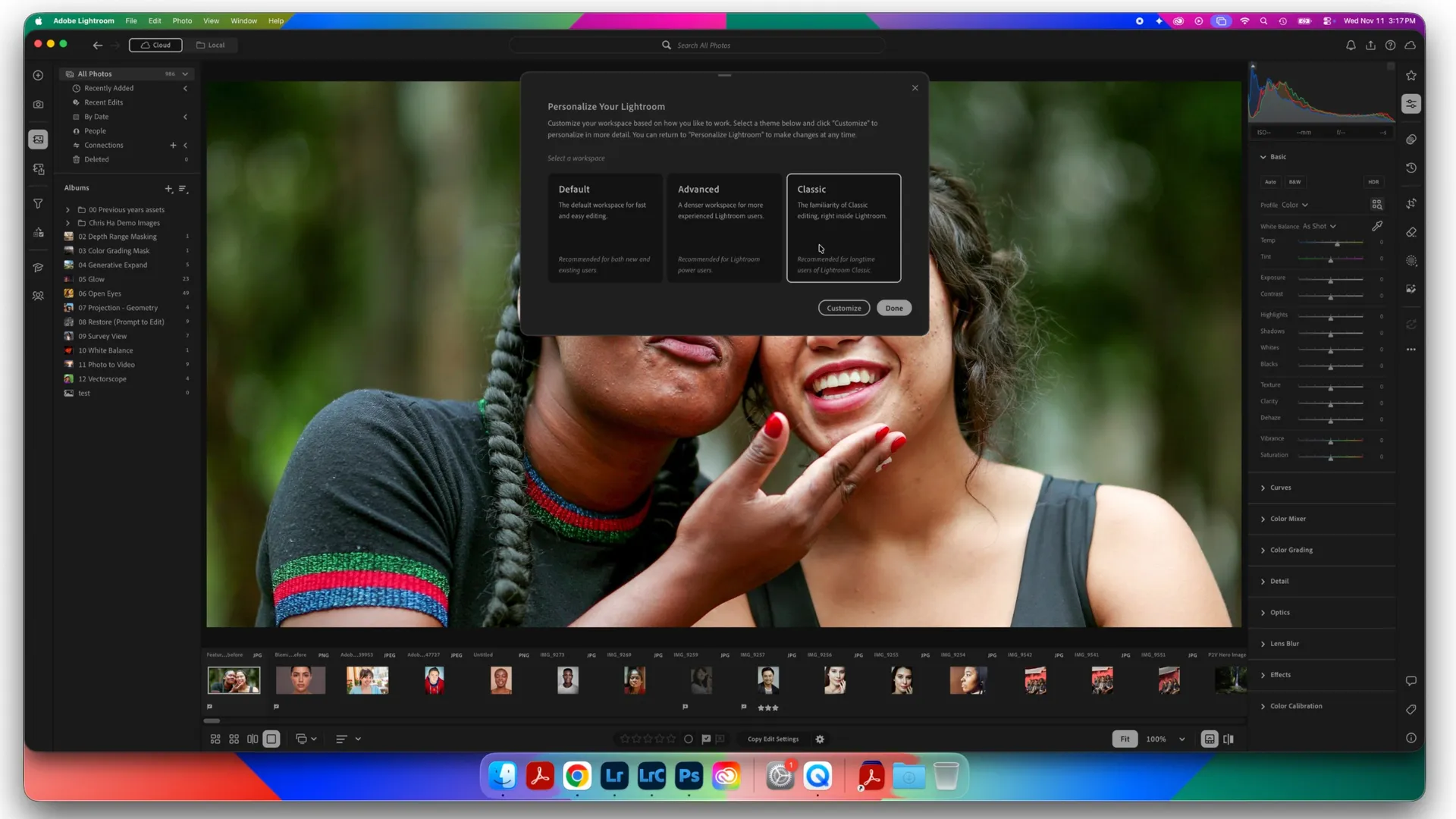
The list of announcements during Adobe Max 2026 was so long that some updates didn’t make the list of key features. Case in point? Adobe Lightroom now has an all-new way to customize the user interface, including the option to save all your favorite sliders in one place or make Lightroom look more like Lightroom Classic.
The custom user interface option arrives on Adobe Lightroom on desktop devices, but isn’t part of Lightroom Classic.
Here’s how the new custom Lightroom workspace works.
Choose a Lightroom workspace
After updating to Lightroom 2027, a pop-up will ask users what workspace to use. The customization options can also be accessed by going to Lightroom > Personalize Lightroom.
In the pop-up window, creators can choose from the default mode, which is how Lightroom normally looks, an Advanced mode with more controls, or Classic, which makes Lightroom look more like Lightroom Classic.
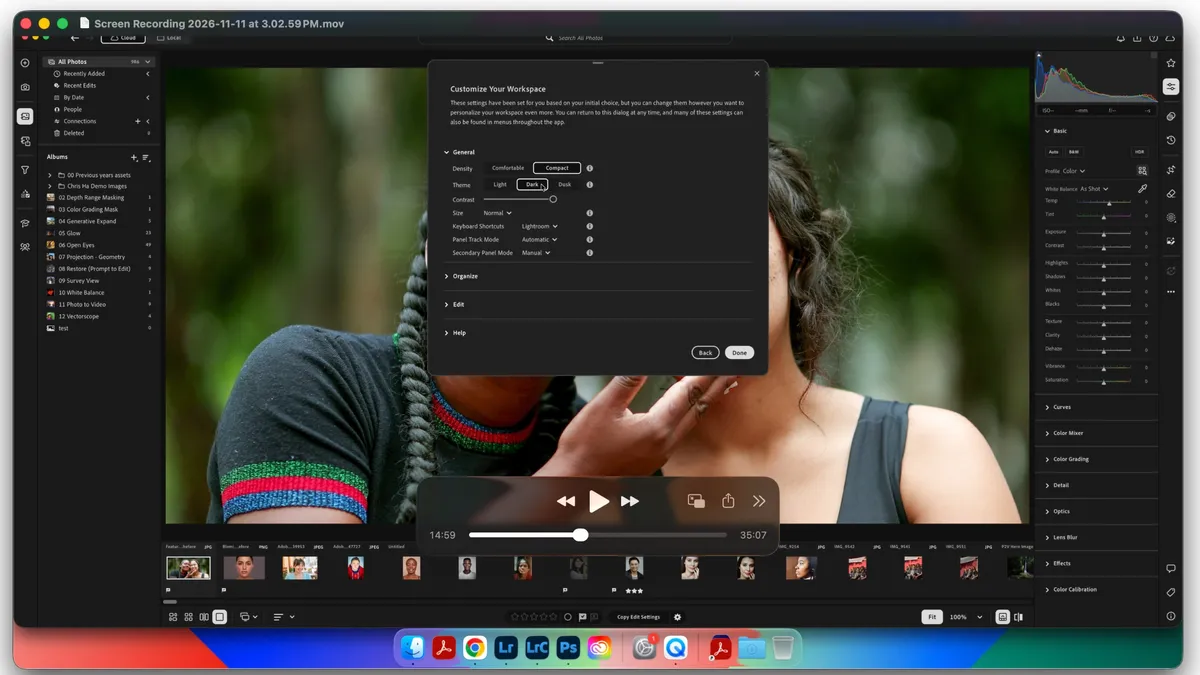
In the corner of this pop-up, there’s also a Customize button. Clicking this will open a new window that offers access to options like the light user interface.Here, photographers can also choose whether to use the Lightroom keyboard shortcuts or the Lightroom Classic ones.
Once finished, Lightroom will restart in order to open in the new customized workspace.
Build a new home for favorite Lightroom sliders
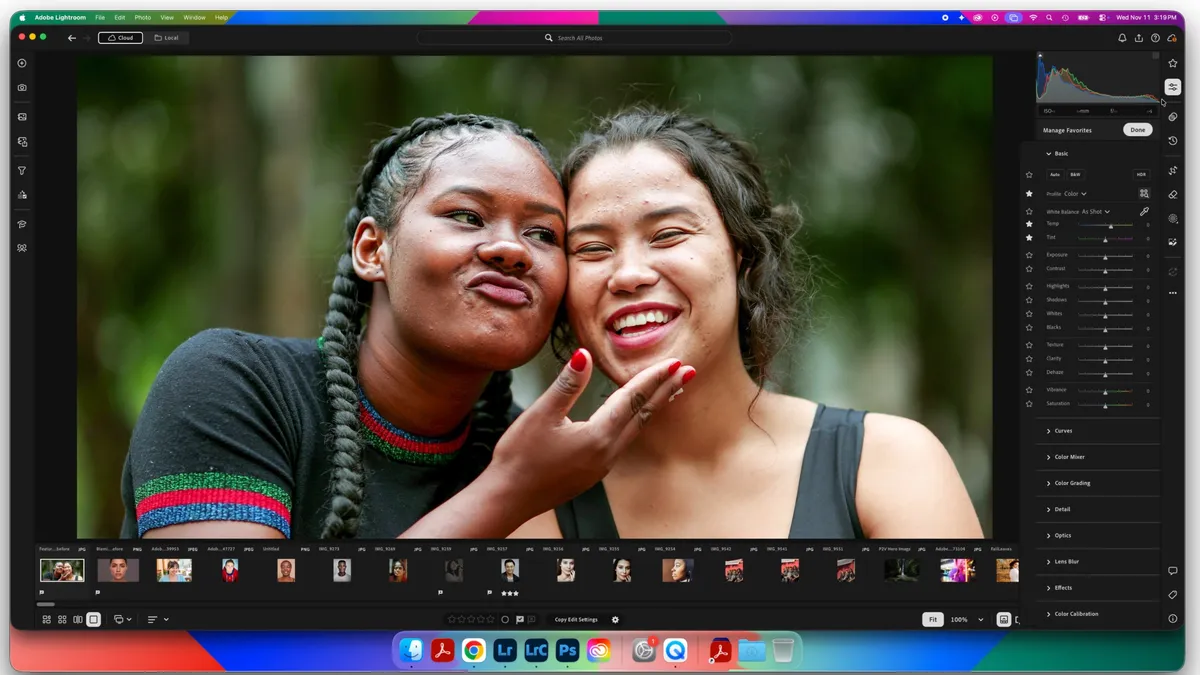
Once inside Lightroom, photographers now have the option to save all their favorite sliders in one place.
On the right-hand side, click the star icon to open the new Favorites section, then click the “...” menu, then choose “Manage Favorites.”
Now, star icons will appear next to all the tools in the sidebar. To save a tool as a favorite, click the star icon.

Inside the Favorites panel, users can also drag and drop each slider to change the order, so you can arrange these controls in the order that you typically use them.
Once you are done customizing, click Done in the favorites section.
Once favorites are selected, top sliders are all housed together in one panel, accessible by clicking on the star icon in the edits stack.
The favorites section can also be exported and imported to share with other creators or between devices. In the Favorites section, tap the “...” menu, then choose export or import.
You may also like
Take a look at the best photo editing apps, or recap all of Adobe's latest announcements at Adobe Max 2026.

