
Your archive is full of them. Files from your first digital camera, 8MP shots that felt revolutionary at the time but now look soft and limited. You still hold on to them because the moment mattered, but cropping was never an option. Straighten the horizon and you'd end up with something barely usable for the web. Pull in tighter on the composition and forget it. 640 pixels of tears.
Super Resolution changes this. It's not magic, but it does allow you to make larger prints and crop much further in those older photos.
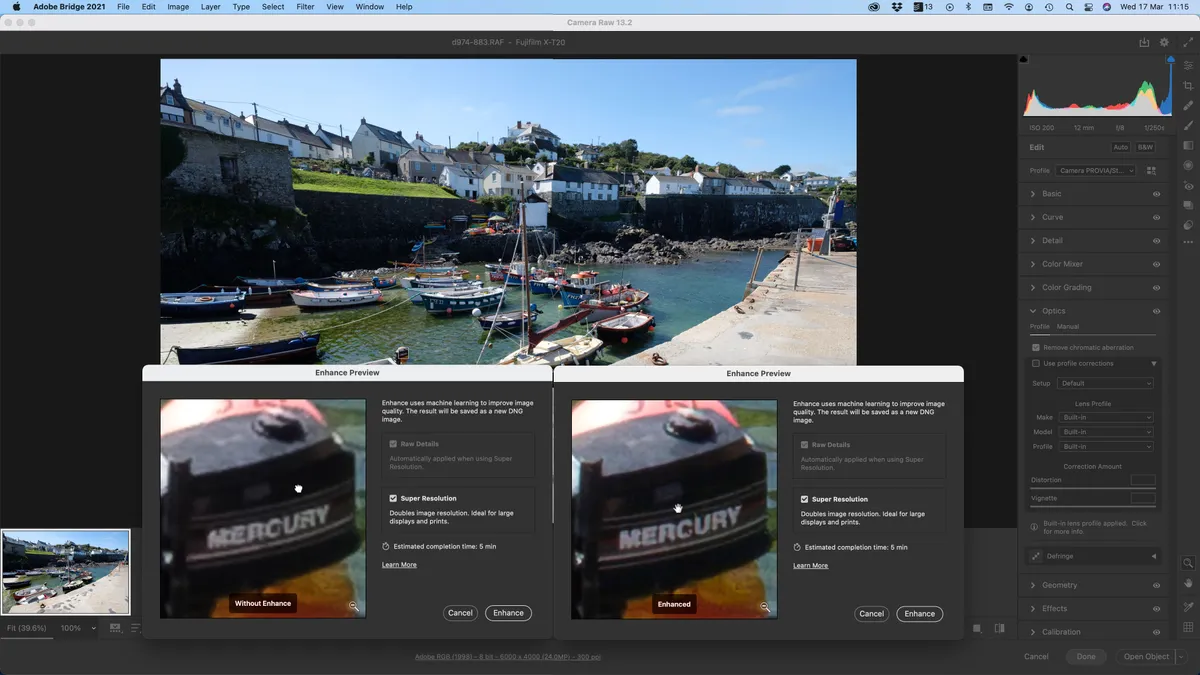
The feature lives in Lightroom Classic's Detail panel, using machine learning to quadruple your pixel count (and it can also be found in Adobe Camera Raw). That 8MP file becomes 32MP. More importantly, it means you can finally make compositional decisions in post that were impossible before. The wider shot you took because you couldn't get closer? Now you can crop in. That slightly wonky horizon you lived with because straightening would kill the resolution? Boom, fixed.
How it works
Open your raw file in the Develop module and find the Detail panel. You'll see Super Resolution as a toggle option. Click it, and Lightroom calculates the enhanced version. The process takes a few seconds, longer for older machines. Unlike the old workflow, this doesn't create a separate DNG file. The enhancement is applied non-destructively to your original raw file, saving drive space and keeping your catalog cleaner. The information is still stored within the catalog files, but you’re not creating the new file.
Once processed, you can toggle Super Resolution on and off without recalculating. Your edits remain intact whether the feature is enabled or disabled. This makes it easy to compare the enhanced version against the original without starting over.
For batch processing, select multiple images in Grid view, then enable Super Resolution from the Detail panel. Your settings sync across all selected files.
What actually improves
Super Resolution works best on sharp, clean files. Good glass, low ISO, proper focus. The algorithm can't invent detail that was never captured, but it can interpolate convincingly when the underlying data is solid. That landscape shot from your 8MP DSLR where everything was sharp? Excellent candidate. The high-ISO concert photo with noise and motion blur? Save your processing time. Perhaps in the future we might have Super Resolution and Denoise available for the same shot, but for now they are mutually exclusive.
The real test is cropping. Take that old file, enable Super Resolution, then crop to 50%. Compare it to what you'd get from the original. The difference is usable versus unusable. Even if you’re cropping to one quarter of the photo, you’re still back to the original 8mp, still fine for A3 or at a push A2 prints.
The practical reality
Super Resolution isn't going to turn your 2005 point-and-shoot files into gallery prints. But it might make them usable where they weren't before. It's particularly relevant if you're sitting on archives from early digital cameras that were perfectly capable but resolution-limited.
The sustainability angle matters too. Rather than constantly chasing newer bodies for more megapixels, you're extracting more value from files you've already shot. That 8MP file you took fifteen years ago suddenly has compositional flexibility you couldn't have predicted.
Try it on a few candidates. Open the Detail panel, toggle Super Resolution, see what's actually there. You might be surprised what becomes usable.

