
The Samsung Galaxy Z Fold8 Ultra is the perfect smartphone for photography from capture to edit thanks to a versatile array of wide-aperture lenses, large sensors and AI-powered software. The camera array has you covered for everything from product close ups and portraits to sweeping landscapes, while the Galaxy Z Fold8 Ultra’s unique form factor and multi-window capabilities make managing shoots easier, and AI processing and Photo Assist speed up the editing process when you’re on the go.
TL;DR
- Multi-window functionality on an 8in screen lets you shoot, check references and edit all on the same device using different tools side by side.
- The AI Image Signal Processor brings out micro-textures and precise hue variations instantly, reducing the need for laborious manual post-processing.
- AI-powered Photo Assist makes it easy to remove unwanted objects and adjust perspective with simple text prompts.
- App Continuity lets you quickly move from the cover screen for shooting to the main display for editing.
1. Multi-window working improves productivity on photo shoots
The Galaxy Z Fold8 Ultra’s multi-window functionality on an immersive foldable 8-inch screen can make your photo shoots more productive by allowing you to keep your shot list and reference images handy while you work.
The main screen provides twice the amount of workspace as most traditional bar-shaped phones. Meanwhile, multi-window working lets you open two or three apps next to each other. This can allow you to keep your shot list open in a document or spreadsheet in one window and a moodboard as an image or PDF in another while you direct the shoot.
This eliminates the friction and break in concentration that occurs when you would otherwise have to leave your camera to consult references on a separate device. You can plan, cross reference and shoot all from the same place, and quickly jump between the camera and communication apps if you need to consult your team, without losing your train of thought.

How to use multiple apps on the Galaxy Z Fold8 Ultra
There are several ways to use multiple apps at once to multitask on the Galaxy Z Fold8 Ultra. You can drag and drop apps from the Taskbar, the Edge Panel or from the Recents menu. You also have two options for viewing them. Split-Screen View shows two or three apps beside each other so you can use them at the same time, while Pop-Up View places apps in floating windows on top of other screens. Try using App Pairs to save the combinations of apps that you use most often so you can open them together with just one tap.
2. AI Image Signal Processor reduces the need for editing
The Galaxy Z Fold8 Ultra’s AI-powered Image Signal Processor (ISP) can automatically enhance the detail in images directly in the camera, reducing the need for manual editing to add contrast and vibrance to a scene.
The ISP analyses a scene the moment you take an image and blends multiple shots into a single, highly detailed image. Clarity is enhanced and noise is reduced to bring out intricate textures and colour detail that might normally require manual tone curve adjustment and sharpening to show at their best.
This means images come out of the camera looking sharp and vivid before editing. It also enhances low-light photography to allow you take crisp night-time shots without the need to heavily denoise the images in specialist software in post.

3. Photo Assist makes editing on the Galaxy Z Fold8 Ultra as easy as typing text
Some of the most exciting moments on a trip can happen as dusk starts to fall, from golden-hour cocktails to bustling night markets and moonlit strolls. These instants have always been challenging to capture in photography because low light can lead to blurry, noisy images that lack colour detail.
The Galaxy Z Fold8 Ultra’s Nightography mode builds on the phone’s wide light gathering apertures with AI processing powered by the ISP. This sharpens and enhances low-light photos (and video).
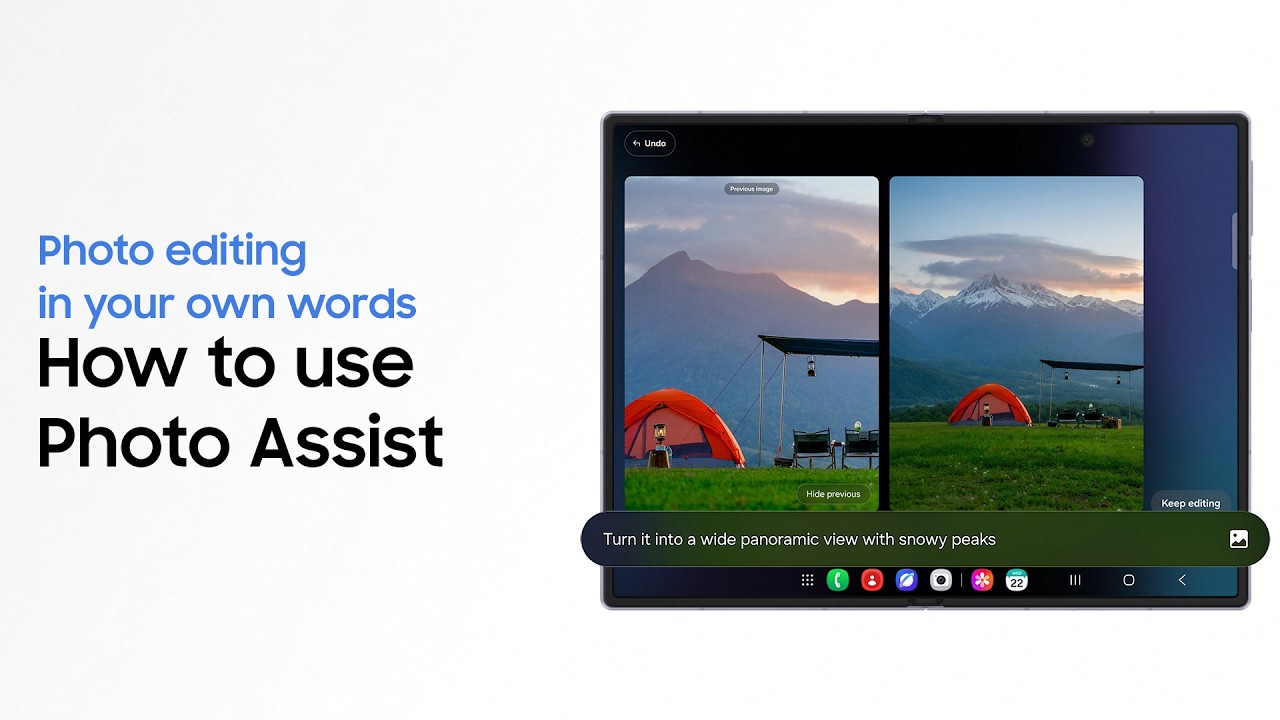
How do I use Galaxy AI Photo Assist on the Galaxy Z Fold8 Ultra?
Photo Assist is a built-in tool that lets you edit photos instantly using simple text prompts. Just open an image in the Gallery and tap the stars icon below it to bring up four options: AI Eraser, Move, Create and Style.
Use the ‘AI Eraser’ option to select and remove any distracting objects that might be ruining your composition.‘Move’ lets you move elements around in the shot, while ‘Create’ lets you make more radical changes or add new elements completely. Simply tap ‘Describe what to change’ to enter your text prompt. You can write something like ‘make the background lighter so the subject stands out’ or ‘increase brightness on the subject’s face and reduce shadows’.
You can carry on making more edits. Press ‘Keep editing’ to prompt more adjustments without losing the changes you’ve already made, and then save a copy when you’re finished.
4. App Continuity improves your editing workflow
App continuity on the Galaxy Z Fold8 Ultra lets you take a shot while the phone is folded and then open the device and immediately start editing with the convenience of a larger screen.
The feature means that your workflow transitions straight from the cover screen to the main display as you unfold the device. The 8in screen makes it feel like editing on a tablet, but without the inconvenience of having to transfer heavy image files to a separate device. This way you can even start editing during a shoot to test how the final image will look.
The larger screen transforms mobile photo editing by providing more space so you can make precise adjustments comfortably without straining your eyes. At the same, the Multi-Window support means you can continue to consult reference images too, whether you choose to edit in the phone’s native editor or your favourite third-party app.

A super bright 3,000-nit uninterrupted display that allows you to work in all conditions, and a light, portable footprint weighing just 215g make the Galaxy Z Fold8 Ultra a pocket-sized workstation that can enhance every stage of a shoot. If you think Samsung Galaxy Z Fold8 Ultra could upgrade your workflow, head to the Samsung website for more information.
FAQs
Is the Galaxy Z Fold8 Ultra better than a tablet for photo editing?
The fact that the Galaxy Z Fold8 Ultra has the advantage of providing a more flexible experience for editing on the go. It provides two screens instead of just one, which means that you can use the large 8-inch display for editing like you would on a tablet while also benefiting from the convenience of being able to fold the device to make it smaller and more portable.
Can I use third-party editing apps on the Galaxy Z Fold8 Ultra?
Yes, you can use third-party photo editing apps like Adobe Lightroom and Photoshop Express. These apps run smoothly and benefit from the foldable phone’s large inner screen for detailed touch-ups. Multi-window working allows you to open your gallery or notes next to your editing app, and app continuity allows you to keep working when you fold or unfold the phone.
