
The Samsung Galaxy Z Fold8 is a versatile dual-screen foldable phone that makes high-quality smartphone filmmaking and video editing faster and easier. A comprehensive lens array has you covered for every situation, from travel blogging to nights out in the city and everyday moments for sharing on social media. At the same time, new AI-powered tools enhance detail, even in low light, and keep video smooth and steady and simplify editing. All this in a compact dual-screen device that’s great for multitasking.
TL;DR
- My FanCam can automatically track and center on a moving subject, making it easy to produce perfectly cropped videos for social media.
- Super Steady Horizontal Lock keeps video footage steady by eliminating camera shake, even when you’re walking over rough terrain.
- Nightography, powered by the advanced AP, intelligently analyses sensor-specific patterns to deliver sharper, more vibrant videos – even in low light.
- A 50-megapixel ultra-wide lens lets you fit more in the frame – ideal for recording pieces while speaking to the camera and for showing off interior spaces.
- Pairing with a Galaxy Watch Ultra2 allows you to preview and trigger recordings without touching the phone, giving you the freedom to film remotely.
- Dual Recording allows you to film in both directions at once – another handy feature for blogging.
My FanCam makes it easy to frame the perfect social media reel
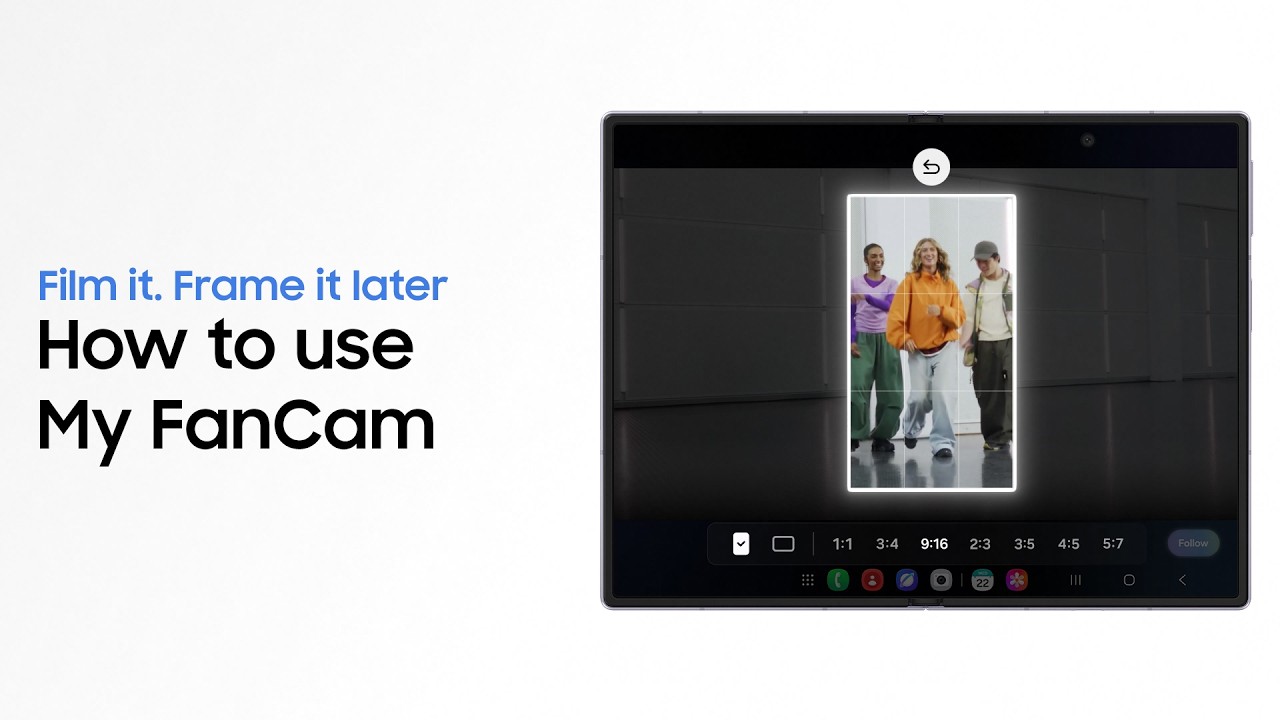
The Galaxy Z Fold8’s My FanCam tool can track moving subjects and keep them in the center of the frame throughout a video. This allows handheld footage with lots of movement to be turned into a perfectly composed shot without the need for time-consuming manual editing and cropping.
Whether you’re filming your kids playing or a friend on the dancefloor during a night out, keeping up with the action can be hard. If you weren’t able to maintain the person you wanted to film in the center of the frame, My FanCam saves you the job of having to try to edit the result by automatically detecting people and cropping in on the main star.
What is My FanCam on Galaxy Z Fold8?
Inspired by K-pop concert fan cams, the editing tool lets you take a wide-angle video that you already recorded on the Galaxy Z Fold8 and automatically track, center and crop the footage to follow a chosen person.
Simply tap on the stars icon when you’re viewing a video in the phone’s Gallery. AI will then start scanning for people. Press ‘+’ to pick the person you want to home in on, and choose the aspect ratio you want (such as 9:16 for social media reels). Dynamic cropping will adjust the zoom and punch in on the video to keep your target character in the center for the whole clip. That shaky footage you thought was a write-off is now a perfectly centered and stabilized video with a clear subject.
Super Steady Horizontal Lock keeps video smooth and steady
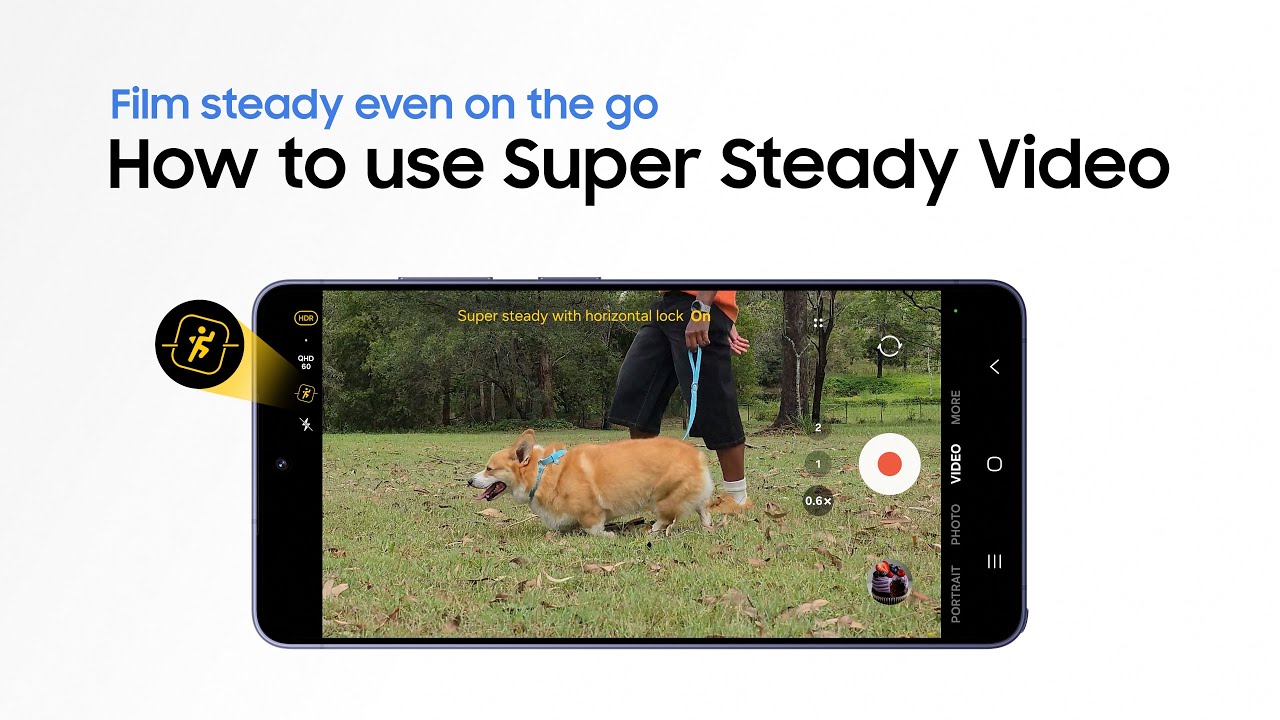
The Galaxy Z Fold8’s Super Steady Horizontal Lock stabilizes videos to make them look smooth and professional without the need for specialist equipment.
Shaky framing can ruin even the shortest video clip, making it look unprofessional and distracting viewers from the action. It’s hard to avoid this when you’re filming handheld, especially if you’re walking while you shoot, but Samsung’s smart Super Steady Horizontal Lock makes having to use a physical gimbal a thing of the past.
How does Super Steady Horizontal Lock work on the Galaxy Z Fold8?
Super Steady Horizontal Lock automatically levels the horizon level in your videos, making recordings look smooth and professional even if you’re running or riding over bumpy ground.
This advanced video stabilization feature is possible thanks to a combination of hardware features on the Galaxy Z Fold8 along with AI processing. It uses the phone’s ultra-wide high-definition sensor, accelerometer and gyroscope to detect the horizon level and then crops in dynamically to counteract movement patterns and fix the horizon in place.
To use Super Steady Horizontal Lock, look for the icon in the top-right corner of the camera app (it resembles a person moving). Simply activate it, and you can record smooth handheld footage at up to QHD resolution at 60fps. You can even turn the phone 360° and your video will stay straight.

Capture clear and vivid video at night with Samsung’s Nightography tech
The Galaxy Z Fold8’s Nightography uses AI-powered processing to produce clear video in low-light situations where filming used to be near-impossible without additional lighting. This enables you to film stunningly vivid late-night scenes at restaurants, clubs and concerts with nothing more than your phone.
Filming video after dark without a dedicated lighting setup used to result in dull, noisy footage that failed to reproduce a scene’s true colors. The Galaxy Z Fold8’s Nightography capabilities take advantage of the 50 MP camera to deliver rich details, while ProVisual Engine refines each shot with real-time noise reduction. This means you can make even the darkest scenes look cinematic.
- Rear video recording: Up to 4K UHD at 60 fps
- Front video recording: Up to 4K UHD at 60 fps.
- 120° Ultra-Wide lens for expansive scenes
- AI ISP Noise Reduction for clearer and more defined low-light video
- Dual Recording to capture action and reaction at the same time
How does Galaxy Z Fold8 Nightography work?
The phone’s AI Image Signal Processor (ISP) has been trained to detect and remove the noise produced by each camera’s sensor while enhancing the real details in a scene. The same technology also works on the front-facing camera, eliminating the fuzzy look that usually haunts late-night selfie videos.
The Galaxy Z Fold8’s cameras detect the level of light in a scene and automatically switch into Night Mode when needed, so there’s no need to worry about manual settings (look for the crescent moon icon on the display if you do want to toggle the light boost on and off).

Capture bigger scenes with the Galaxy Z Fold8’s ultra-wide camera
The Galaxy Z Fold8’s ultra-wide lens fits more into a frame, enabling you to capture the drama of expansive landscapes and imposing architecture without having to find a different place to shoot from. It also means that you can film yourself or someone else talking to the camera while still providing the context of their location.
The ultra-wide lens offers a broader 120° field of view, which is ideal for cinematic shots of landscape and city buildings. It’s also great for filming indoors since you can capture more detail in tight spaces where there isn’t room to step back.
The wider background when you’re filming videos while speaking to the camera is just what you need for travel vlogging or YouTube explainer videos and tutorials – you can use Samsung’s own Carbon Standing Case to prop the device up when you want to film yourself. The wide angle gives you more leeway to move around in the shot because you can always use Samsung’s MyFamCam to center it later. There are also Dual Recording capabilities that enable you to film in both directions at once – another handy feature for vlogging.

Galaxy Watch Ultra2 camera controls make recording easier
Pairing the Galaxy Z Fold8 with a Galaxy Watch Ultra2 enables you to preview a scene and start recording remotely, which gives you more freedom to set up the perfect shot.
The Galaxy Watch Ultra2 can act as a wireless controller, enabling you to start and stop recording without touching the Galaxy Z Fold8. This is very useful when you’re filming yourself or when the phone is mounted on a tripod, because it means you can control everything from the watch – reducing shake and interruptions to shooting.
The watch can display a live feed from the camera, which enables you to frame shots from a distance instead of jogging back and forth to the phone to check alignment. Simple wrist gestures can trigger zoom or switch between lenses, keeping your hands free for a more natural appearance on screen. You can also use the watch to instantly review recordings to see how they turned out.
Whether you’re launching a YouTube channel or preserving family memories, the Galaxy Z Fold8 has lenses and AI processing smarts to capture striking professional-looking video footage in any situation. If you think it can level up your videos, head to the Samsung website to find out more.
FAQs
Can the Samsung Galaxy Z Fold8 help beginners shoot more professional-looking video?
Yes, the Samsung Galaxy Z Fold8 can help beginners shoot professional-looking video through features like Super Steady Horizontal Lock to eliminate camera shake, My FanCam for AI subject tracking and high-resolution dual 50MP rear lenses with an AI Image Signal Processor that produces clearer, more detailed video, reducing the need for editing.
How does the Samsung Galaxy Z Fold8 keep people and pets in frame while recording?
The flagship tool for post-recording framing is My FanCam. This Galaxy AI feature enables you to record a wide-angle video and then automatically track, center and reframe people afterwards. The feature doesn’t currently work with pets, but the camera’s autofocus can help you focus on your pet automatically while it’s in the frame.
Is the Samsung Galaxy Z Fold8 a good phone for content creators who edit on the go?
Yes, the Samsung Galaxy Z Fold8 is an exceptional device for content creators who edit on the go thanks to the ability to switch seamlessly between its two displays. You can take a photo with the camera closed and then open the device to immediately start editing on a larger display.
The inner display provides a spacious canvas more akin to a tablet experience, enabling you to view your images more closely and use editing tools more comfortably. You can also use text prompts to edit images via Photo Assist.
